

In this guide, you will learn how Google Meet integration works with Creator LMS. Creator LMS allows you to run live cohort-based sessions using Google Meet.
To use this feature, make sure Creator LMS Basic and Creator LMS Pro are both installed and activated on your site.
Before starting, ensure that you already have Creator LMS and Creator LMS Pro installed on your WordPress website.
Step 1: Enable Google Meet Integration
- Go to Creator LMS → Addons in the left sidebar.
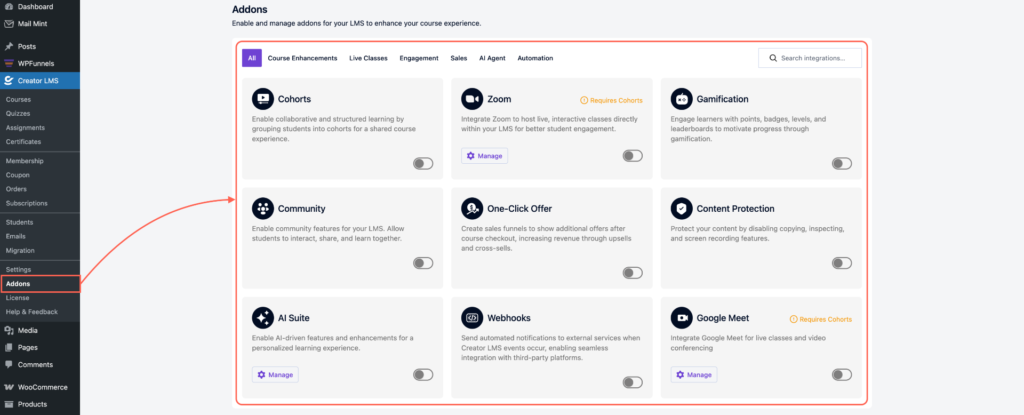
- Enable both Google Meet and Cohort options. Note: Google Meet functionality works only for cohort-based courses, not self-paced courses.
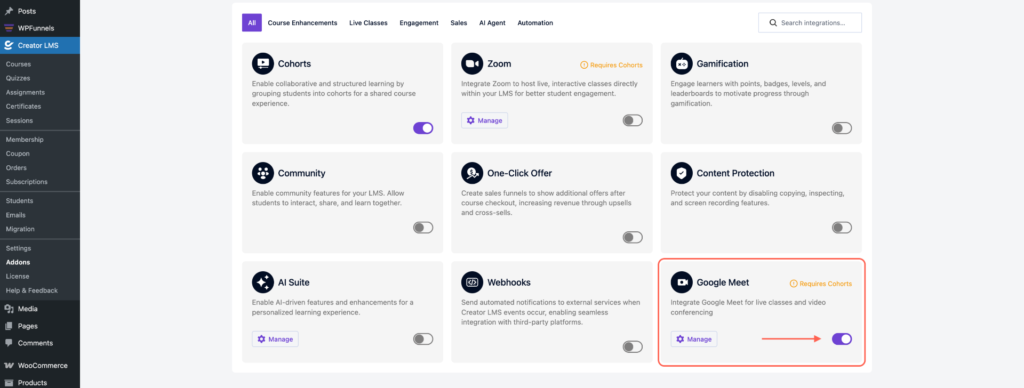
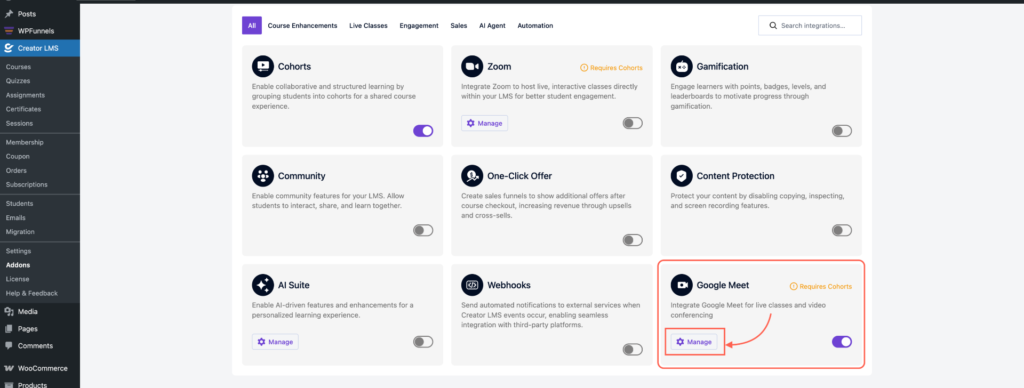
- After enabling, click Google Meet → Manage.
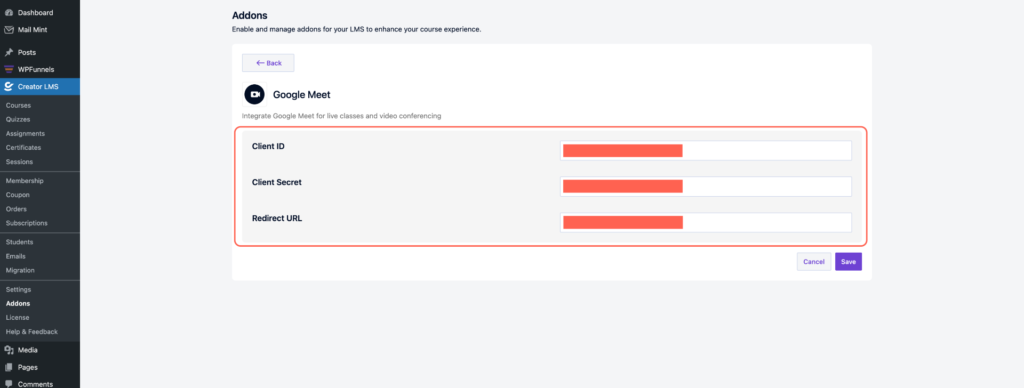
- Configure your Google API credentials:
- Client ID
- Client Secret
- Redirect URL: Use the Redirect URL format:http://(your_site_url)/wp admin/admin.php
Step 2: Create a Cohort Course
- Go to Course Sections from the WordPress left-hand menu.
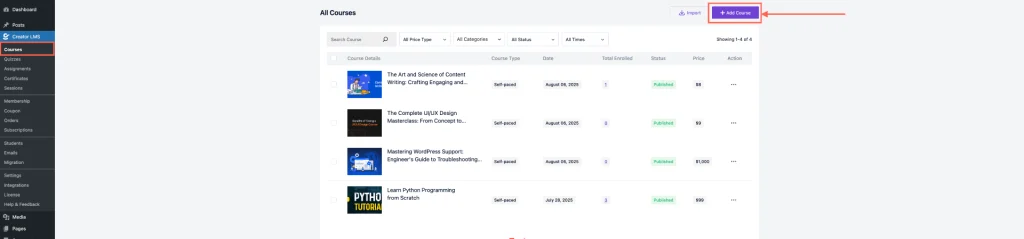
- Click Add Course, then a pop-up will appear asking you to choose the course type: Self-Paced and Cohort-Based → Choose Cohort-Based.

- You can choose to build the course with AI or from scratch. In this guide, we’ll create it from scratch.

Step 3: Configure Your Cohort Course
- After selecting a cohort-based course, set a clear title, informative description, and an appealing thumbnail to attract and guide students.

- Next, click on “Add Content,” and you’ll see the option for Google Meet sessions.
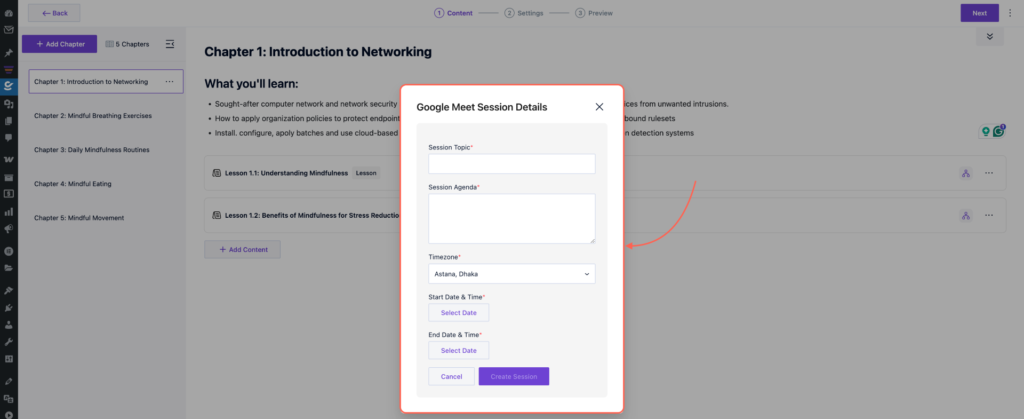
- Schedule your Google Meet session by entering:
- Session agenda
- Start date & time
- End date & time
- Any additional details required
- Once all details are set, click Create Session.

Your students enrolled in the cohort-based course will now be able to join your scheduled Google Meet sessions directly from the course.
