

Creator LMS offers a centralized settings panel where you can control how your learning platform works, looks, and behaves—globally. Here’s a quick overview of the 5 main settings sections.
How to Access Global Settings
Navigate to your WordPress Dashboard → Creator LMS > Settings. You will find the following five settings tabs:
1. General Settings
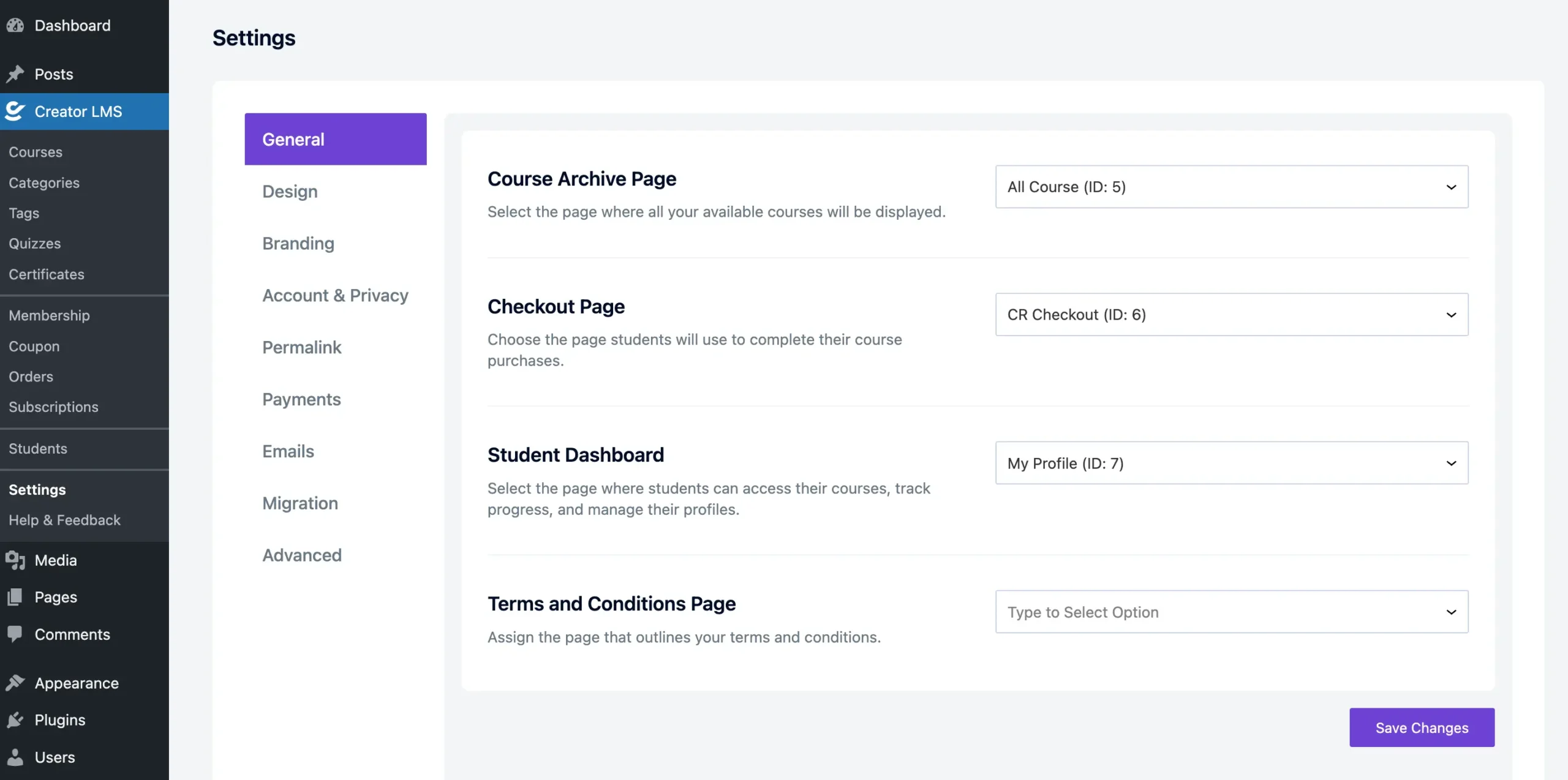
This section allows you to configure essential behaviors of your LMS and link important pages for a seamless user journey.
- Course Archive Page – Select the page where all published courses will be listed.
- Checkout Page – Set the page students use to complete their enrollment or purchases.
- Student Dashboard – Choose the page where learners can manage their enrolled courses, progress, and profiles.
- Terms and Conditions Page – Assign the page that outlines your platform’s terms and conditions.
- Thank You Page – Set the page students will land on after a successful purchase.
These settings ensure your LMS flows smoothly between course browsing, purchasing, and learning.
2. Design Settings
In this section, you can control how your courses appear to students on both the listing and individual course pages.
Course List Page
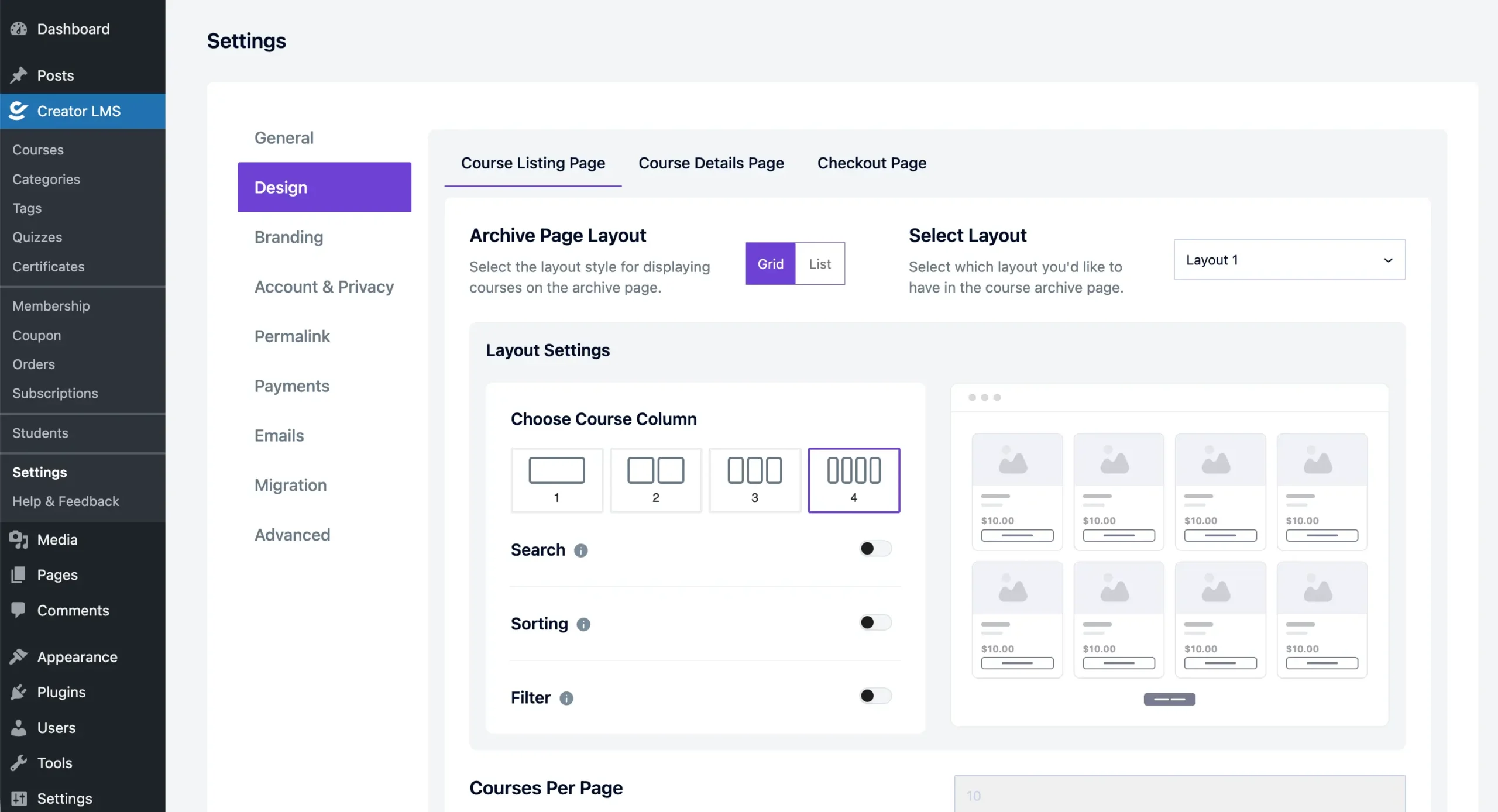
- Archive Page Layout: Choose between a Grid or List view for how your courses appear.
- Select Layout: Select a specific layout style to control the visual presentation.
- Layout Settings – Choose Course Column: Decide how many columns (1–4) to display in the course grid.
- Search, Sorting, and Filter: Enable or disable features that allow students to easily find and sort courses.
- Courses Per Page (Pro): Set how many courses will be shown on each page.
Course Details Page
This section controls how the individual course pages are displayed for your learners.
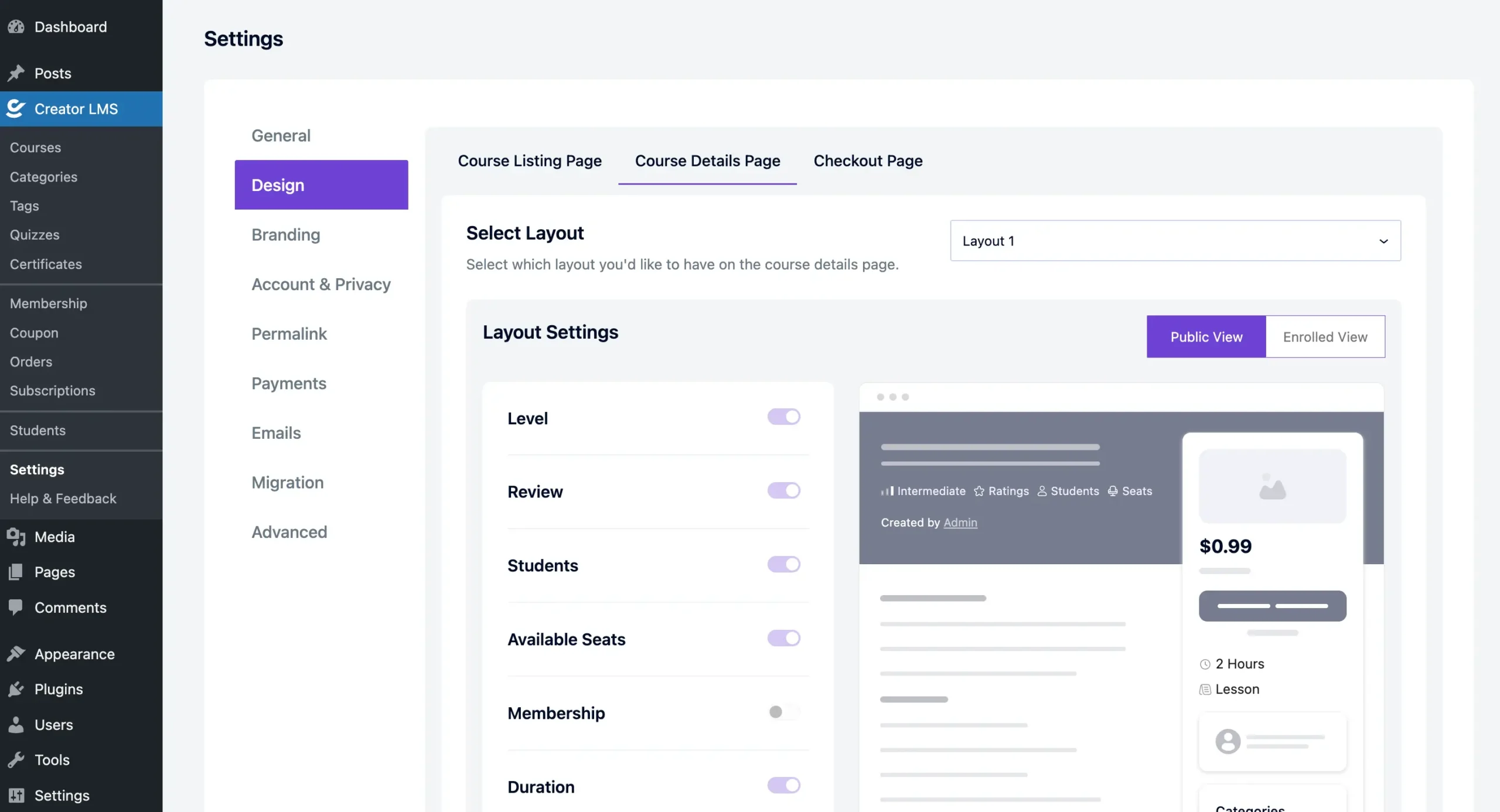
- Select Layout: Choose the preferred layout style for the course details page.
- Layout Settings(Pro): Customize which elements to show based on the user’s enrollment status.
- No Enroll View / Enroll View: Display different information for non-enrolled vs. enrolled users.
- Display Options: Toggle on/off key course info, such as:
- Level (e.g., Beginner, Intermediate)
- Ratings and Reviews
- Total Students
- Available Seats
- Membership status
- Duration (e.g., hours)
- Total Lessons
- Resources
- Author details
- Categories & Tags
Checkout Page
In this section, you can customize the design of your checkout page and enable different layout options to match your brand or user experience preferences.
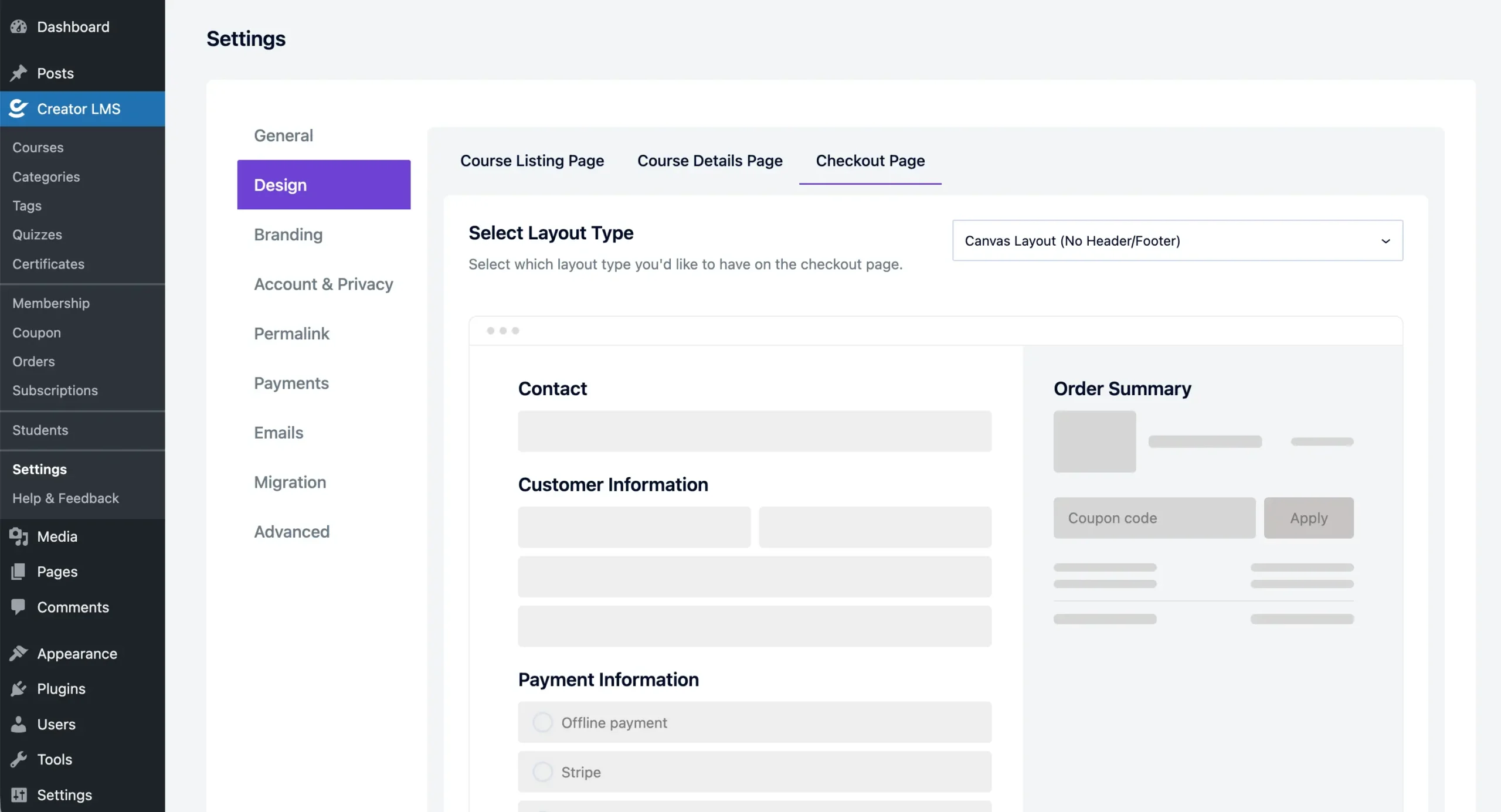
These settings help you design an informative and engaging course page that suits your content and audience.
3. Branding Settings
The Branding section allows you to personalize the visual identity of your LMS to match your brand. We have added some presets to help you with color palette ideas. You may customize them as you like.
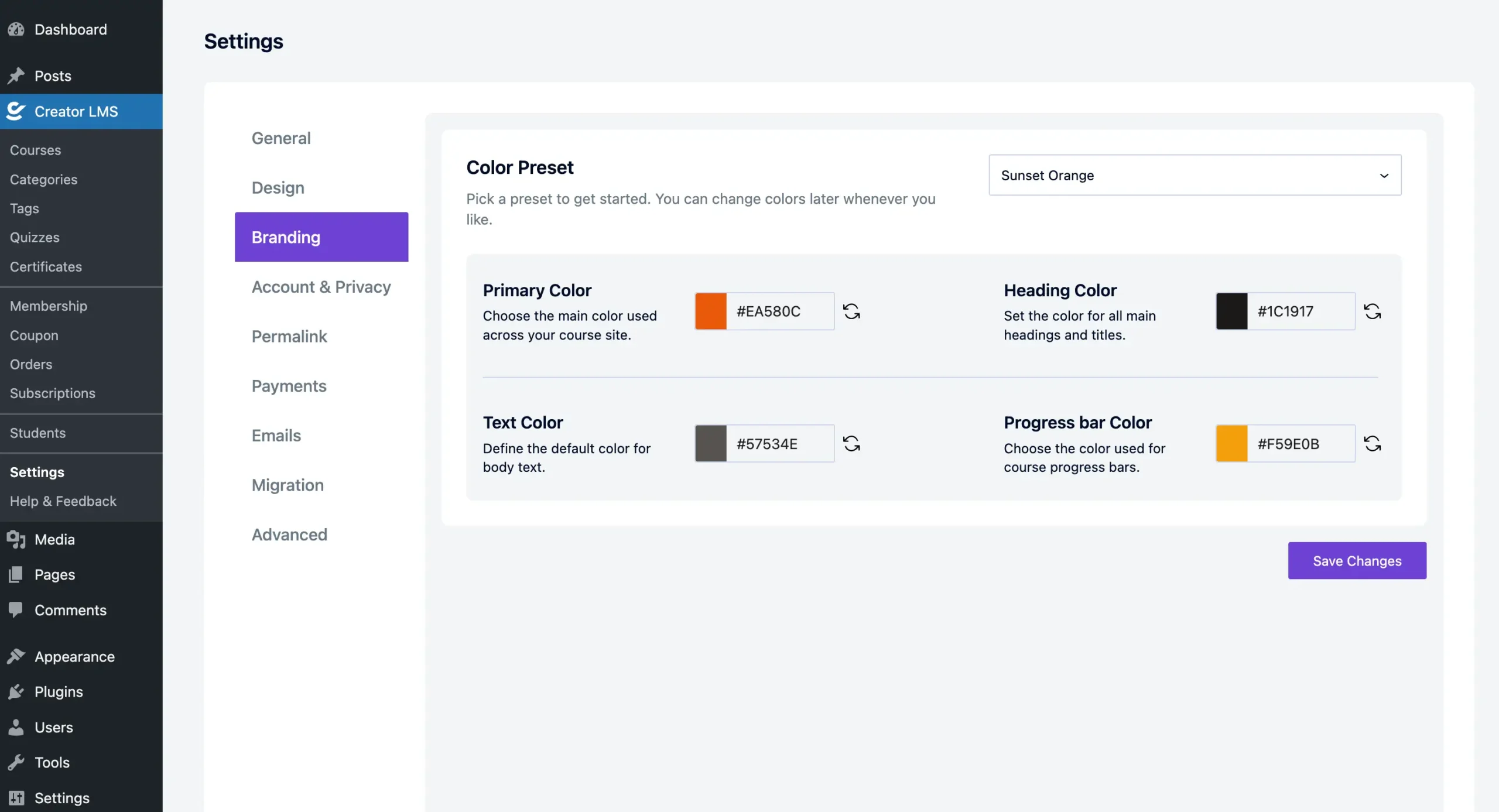
- Primary Color: Sets the main highlight color used throughout the site, including buttons and active elements.
Example:#1356F0(default blue) - Heading Color: Defines the color for all main headings and titles used across pages.
Example:#000D25 - Text Color: Determines the default color for regular body text.
Example:#52525B - Progress Bar Color: Customizes the color of progress bars shown in course tracking.
Example:#35BD4C(default green)
This section helps ensure your course platform reflects your brand style consistently.
4. Account & Privacy Settings
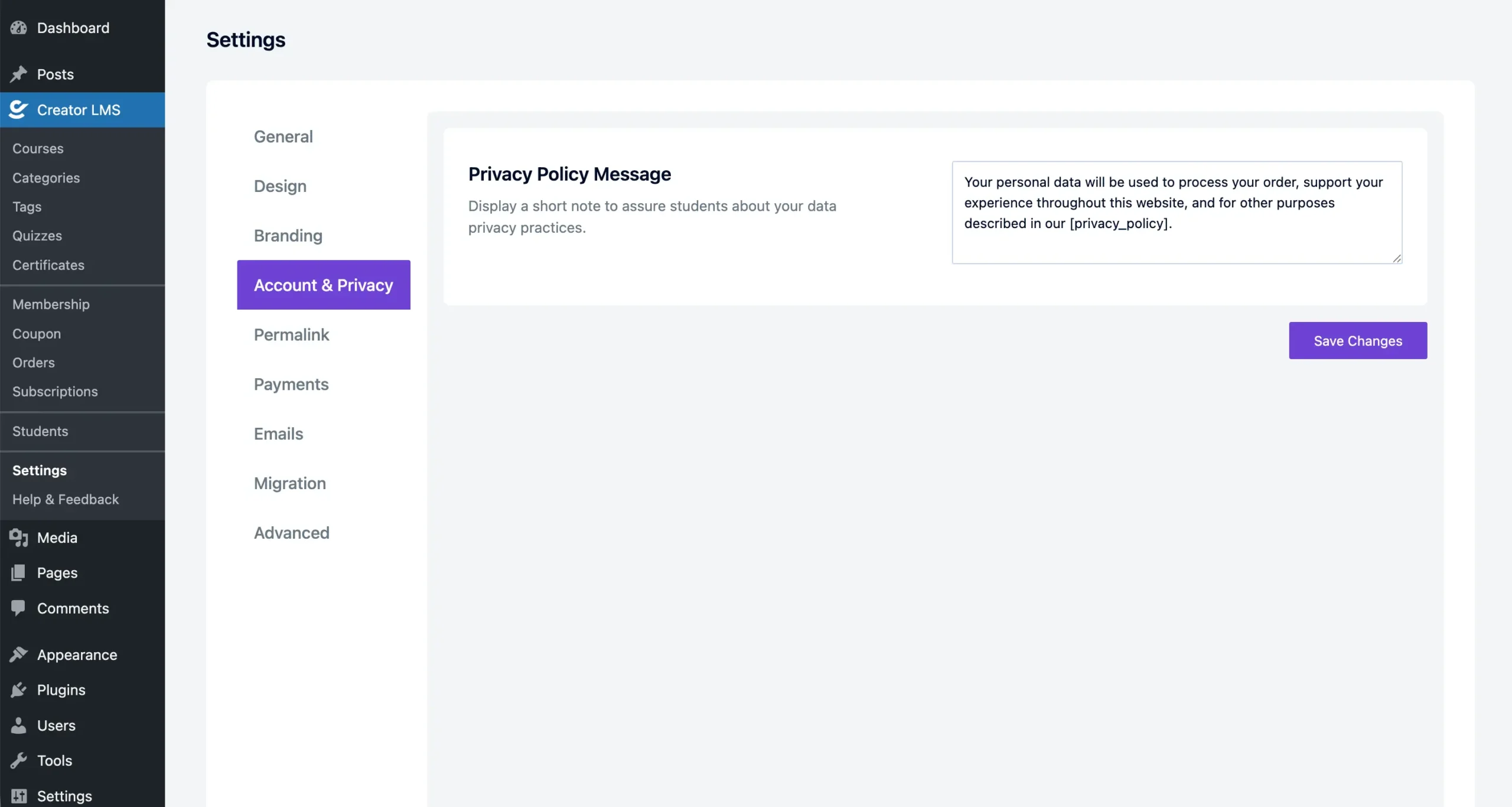
Here, you can control student access options and reinforce privacy measures for your LMS site.
Privacy Policy Message: Display a brief note on your checkout page to reassure students about your data handling practices. Helps communicate transparency and build student trust.
5. Permalink Options
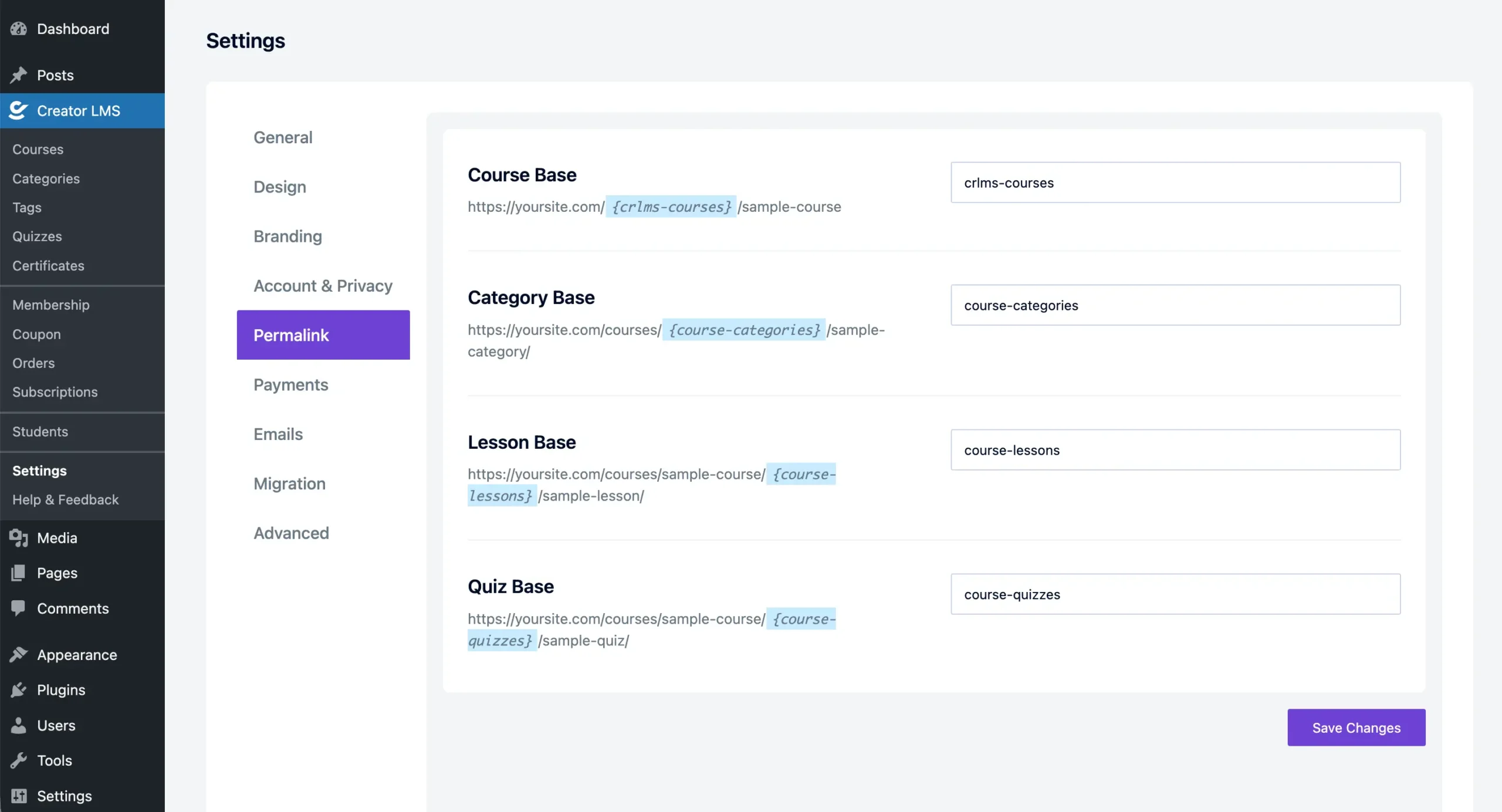
Customize the URLs for different parts of your LMS to make them clean, user-friendly, and SEO-optimized.
6. Payments
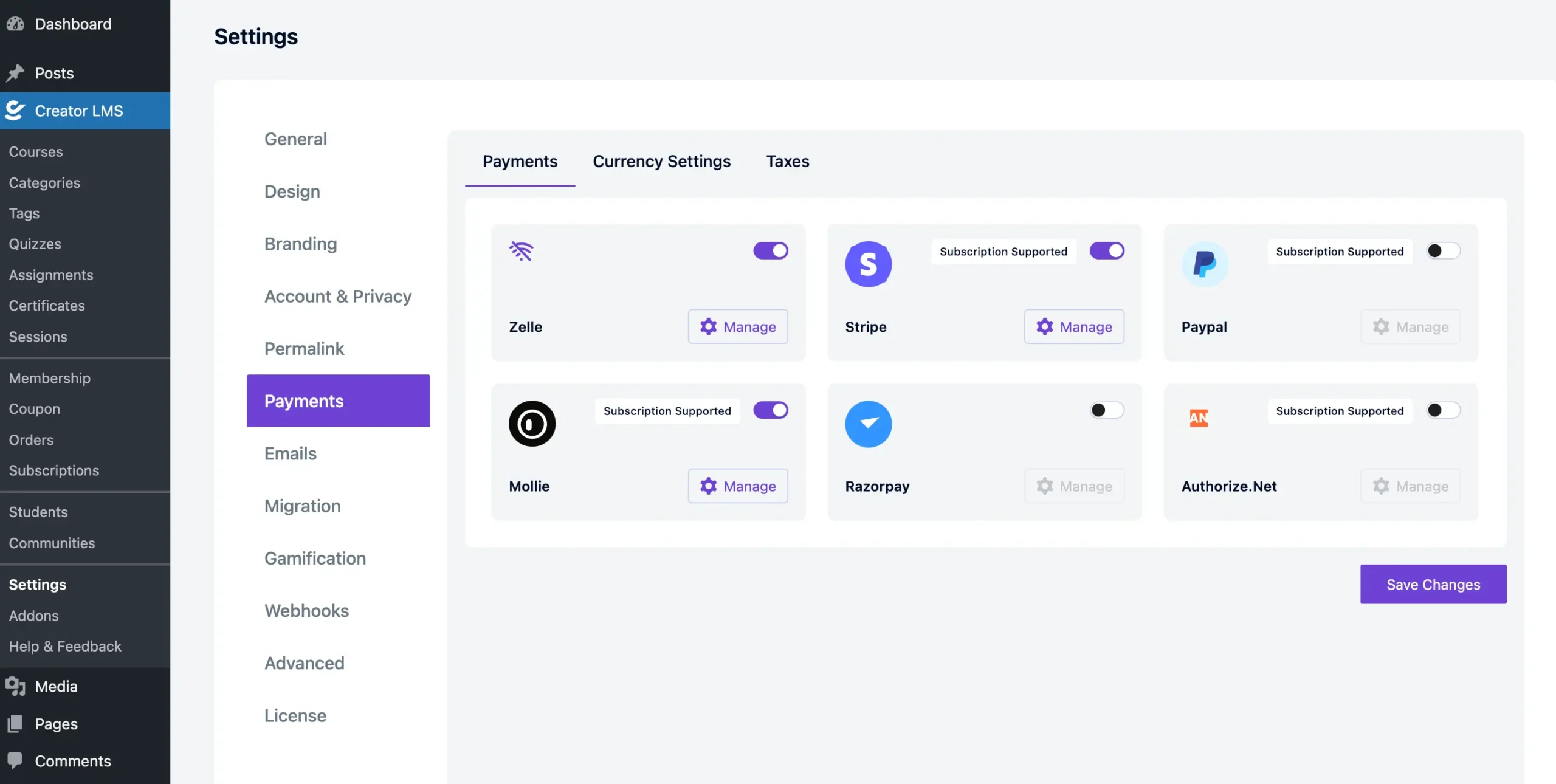
In the Payments tab, you can configure currency settings and manage available payment methods. Creator LMS supports both one-time and subscription-based payments. Also, from the Manage option, you can configure additional settings for each payment method, including subscription support.
7. Emails
Creator LMS includes email notifications for both admins and students.
Since the plugin also has a built-in eCommerce feature for selling courses, these emails are important for course and order updates.
From here, you can view all emails, enable or disable them, and edit the email templates.

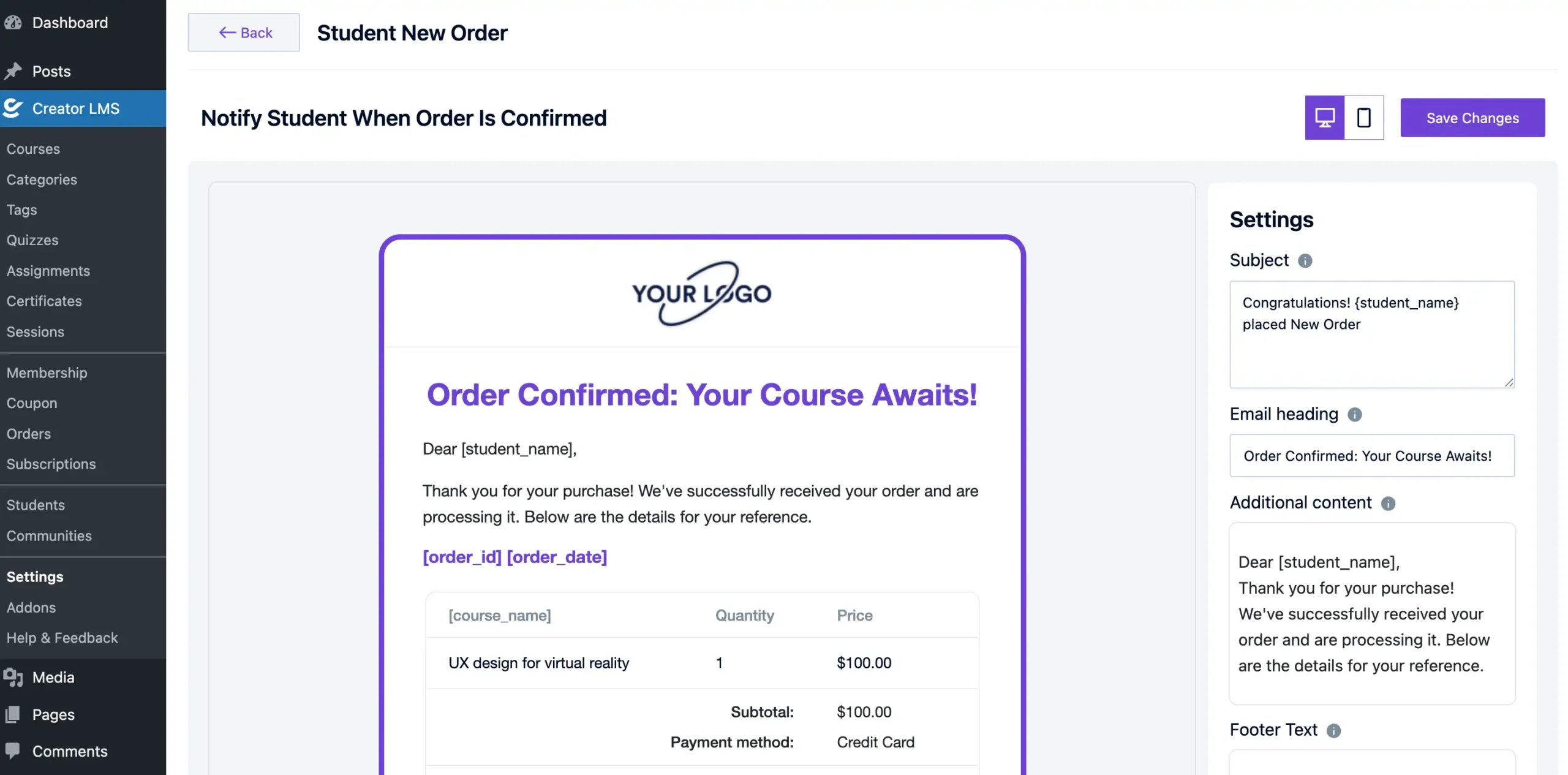
If you click Edit Template, you will see a visual editor. From there, you can update the default email subject, heading, content, and other text.
If you use our MailMint plugin with the integration, you can design more beautiful email templates. You can also automate emails based on different events.
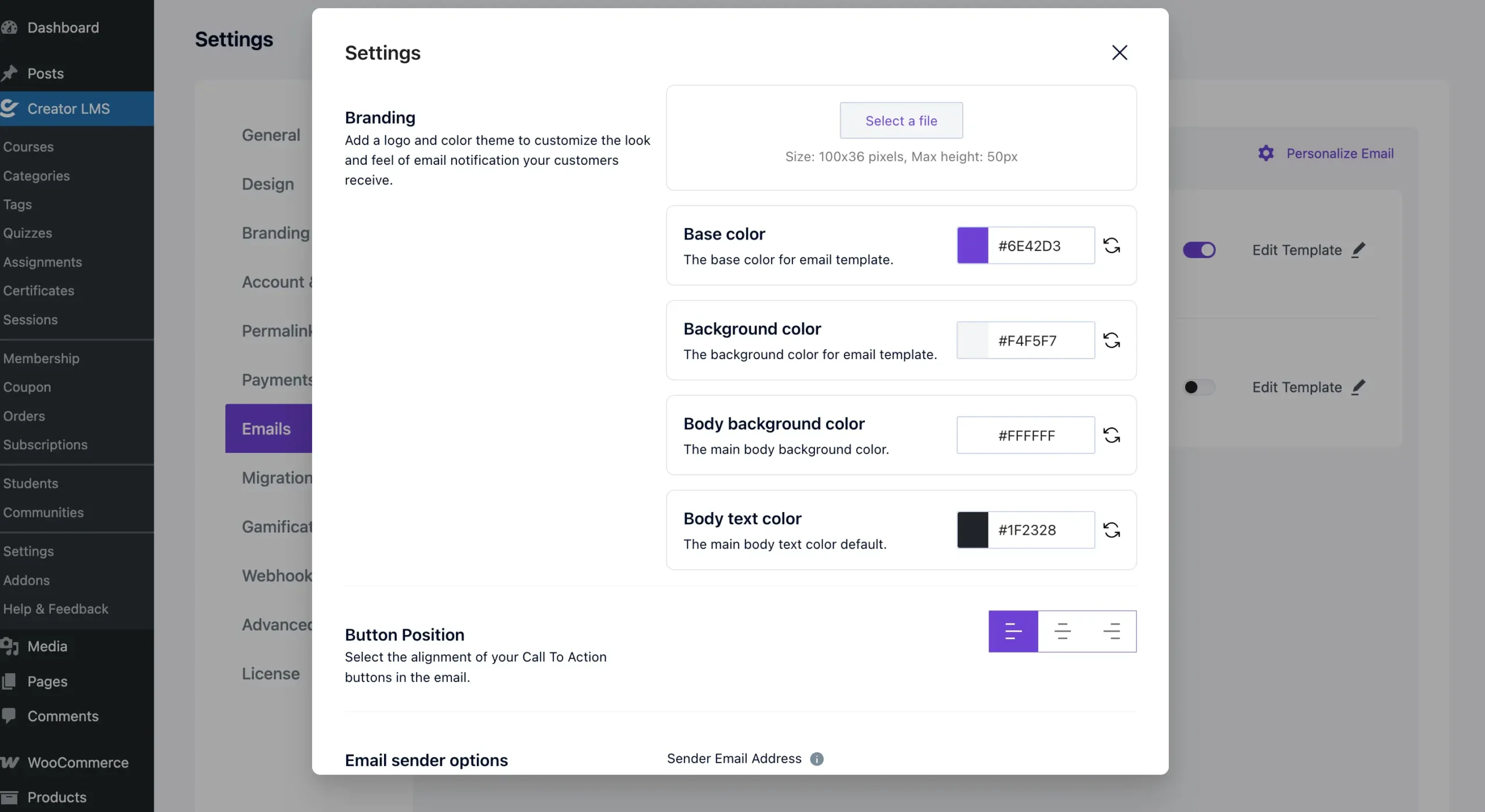
The email settings are available after you click Personalize Email at the top of the email list screen.
The default settings work well. We recommend uploading your logo, company name, and email address here. Email colors will use your default branding settings, but you can also choose different colors for emails if you prefer.
Please note: If you use managed WordPress hosting, you should use an SMTP plugin and an SMTP gateway for email delivery. Services like Postmark, Amazon.com, Inc. (SMTP/SES), or Brevo can handle email sending.
If your hosting provider does not support sending emails, the email features may not work.
8. Migration
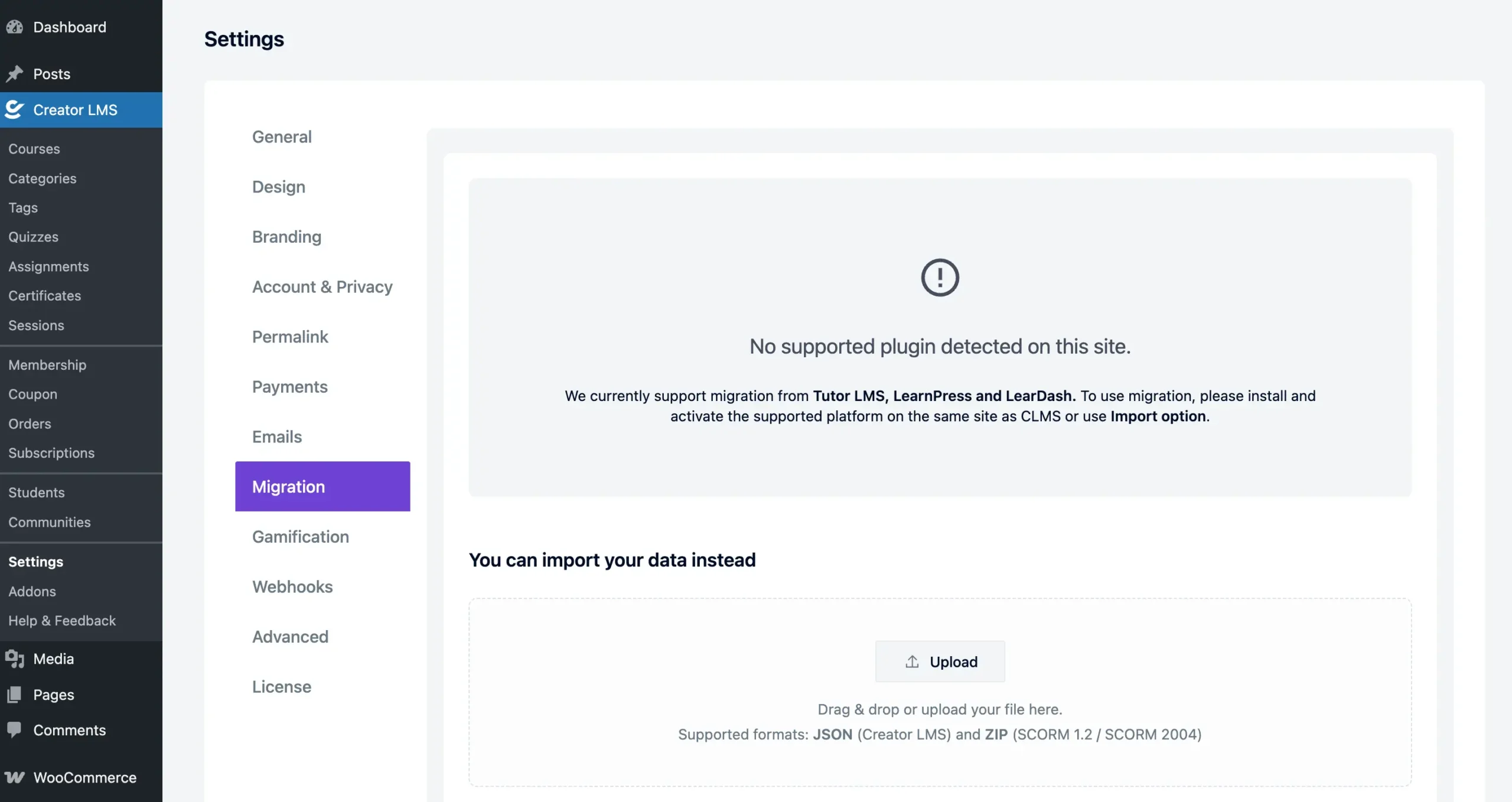
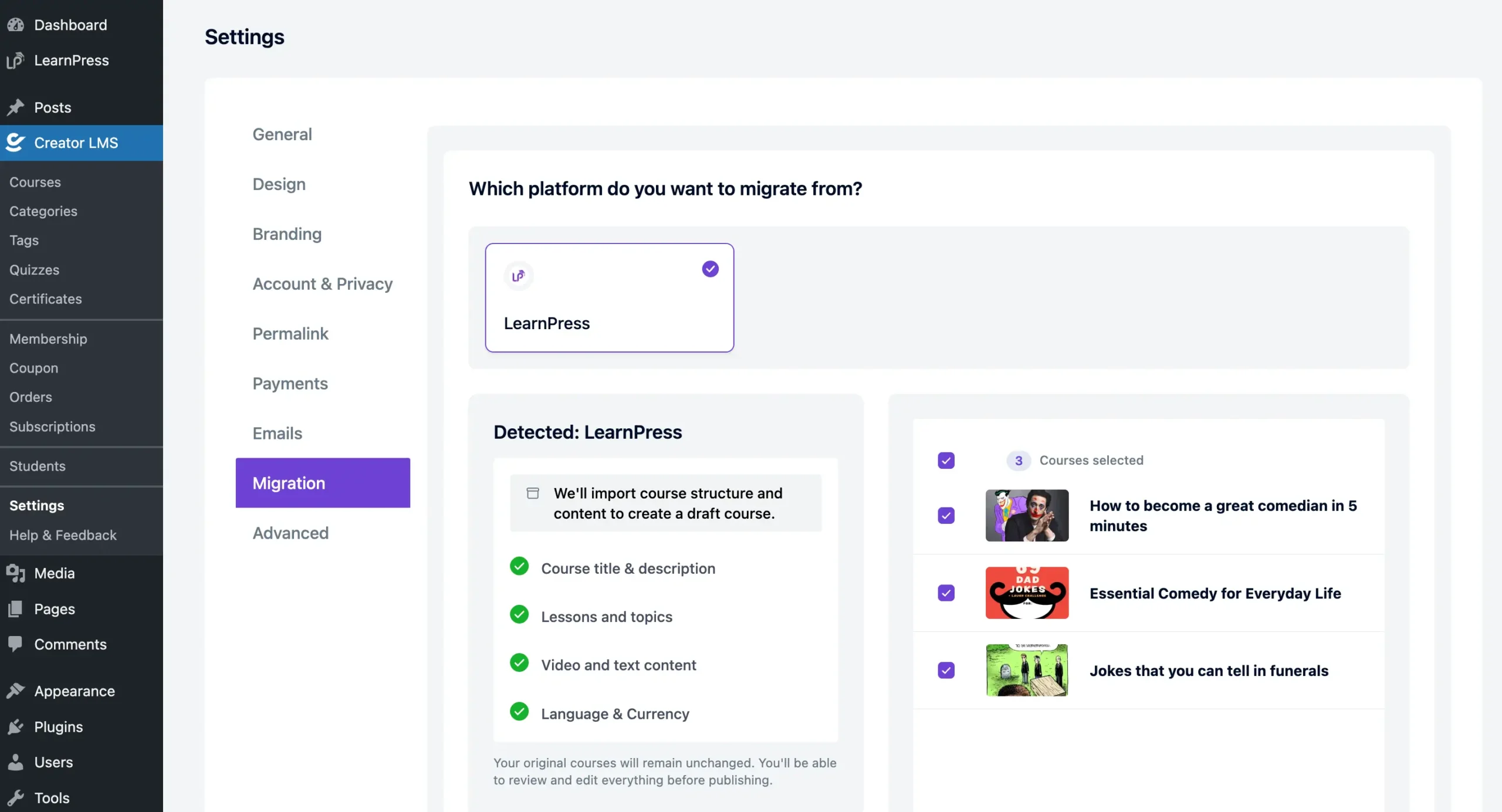
Creator LMS supports content migration from LearnPress, LearnDash, and Tutor LMS.
If none of these plugins are installed on your site, the migration option will appear like this.
Content Migration
You can migrate Creator LMS content from one site to another. Both sites must have Creator LMS installed.
This is useful when you build courses on your localhost and move them later to a live site. You can also use it to move courses between different websites.
SCORM Import Compatibility
The SCORM import feature supports SCORM 1.2 and SCORM 2004.
Please check with your platform provider to confirm which SCORM version they use. Make sure it matches one of the supported versions.
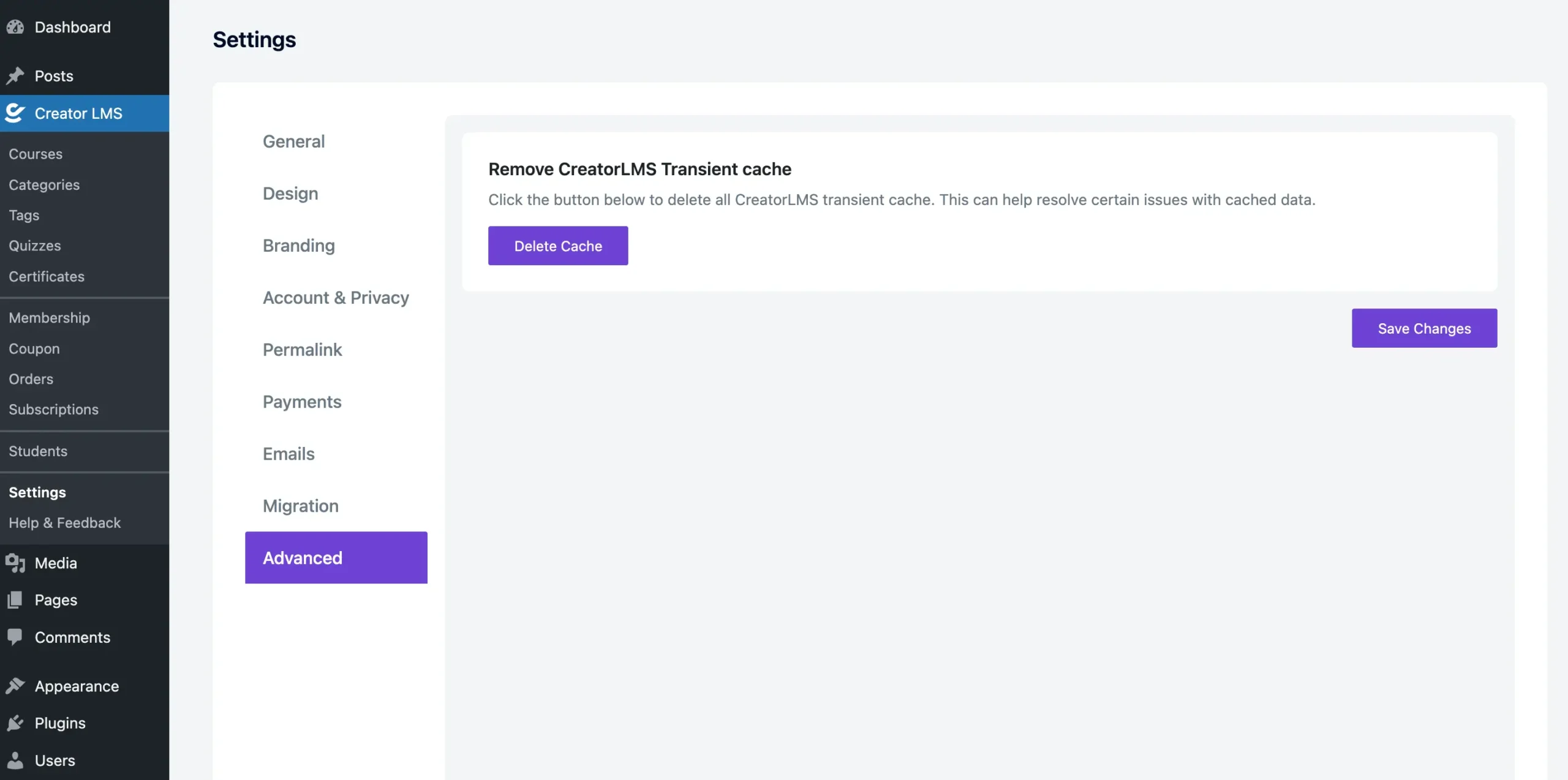
9. Advanced
Sometimes your caching plugin may conflict with Creator LMS data. WordPress transients can also cause issues.
If you face this kind of problem, click the Delete Cache button. This will clear the stored cache and help resolve the issue.
Now everything is set up just the way you need. Your Creator LMS platform is ready to deliver a smooth and professional learning experience. You’re all set to start building and sharing your courses!
