

In this guide, we’ll walk you through connecting Creator LMS with WP Fusion. This integration allows you to sync your courses, students, and actions with your preferred CRM, such as Klaviyo, ActiveCampaign, or HubSpot.
Prerequisites: Before starting, make sure you have installed WP Fusion, Creator LMS, and Creator LMS Pro plugin on your WordPress site.
Step 1: Enable WP Fusion Addon in Creator LMS
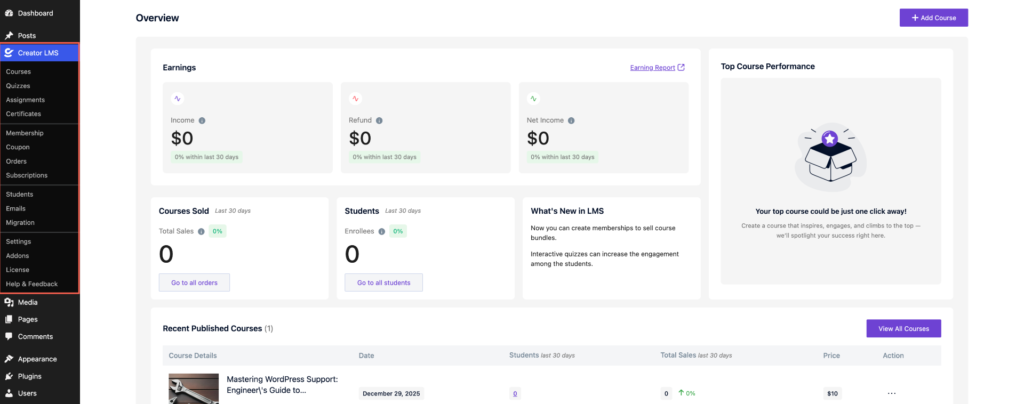
- From your WordPress dashboard, go to Creator LMS in the left-hand menu.
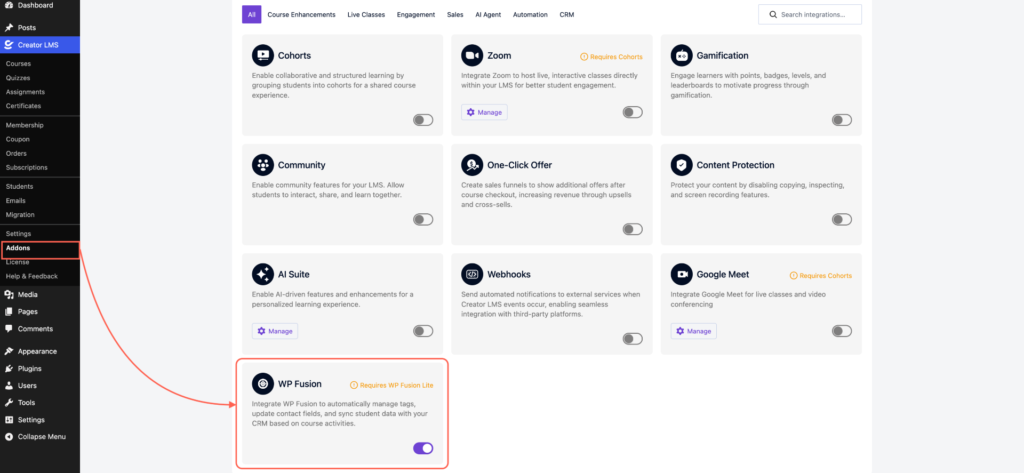
- In Creator LMS, open Addons, locate WP Fusion, and switch the toggle to Enable.
Step 2: Connect WP Fusion to Your CRM
- Go to WordPress Settings → WP Fusion.
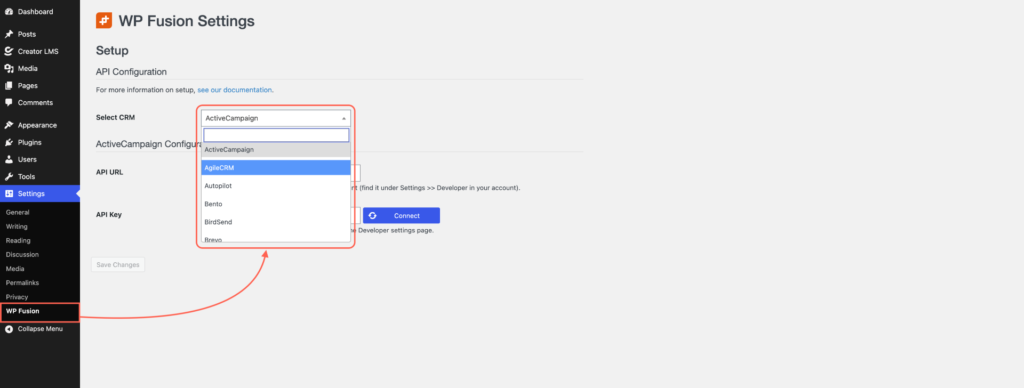
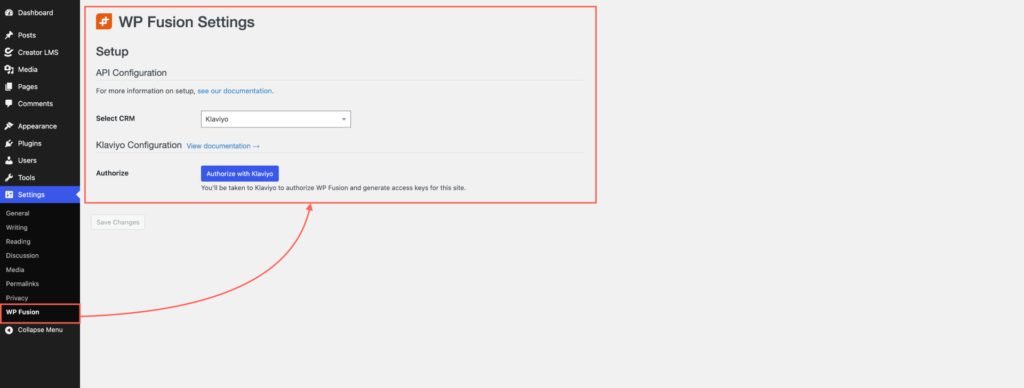
- Choose the CRM you want to connect to, then authenticate your CRM account using an API key or OAuth. In this guide, we’ll use Klaviyo as the example.
Step 3: Create a Tag or List
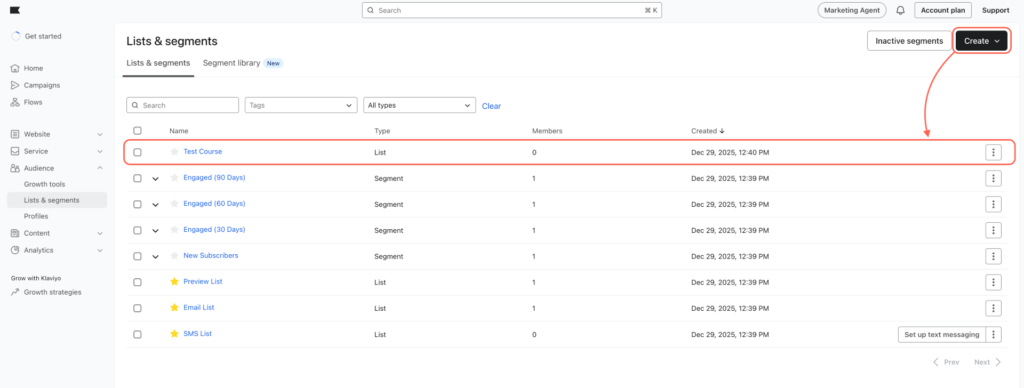
- In your CRM, create a new Tag or List for your course integration. Example:
Test Course
Step 4: Assign Tag/List to a Course
- Go to Creator LMS → Courses. Open an existing course or create a new one.
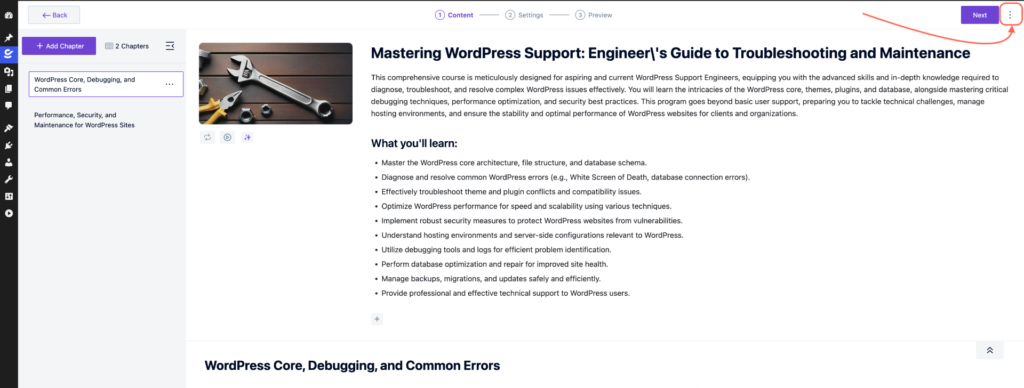
- Click the three-dots menu in the course options, then go to Integration.
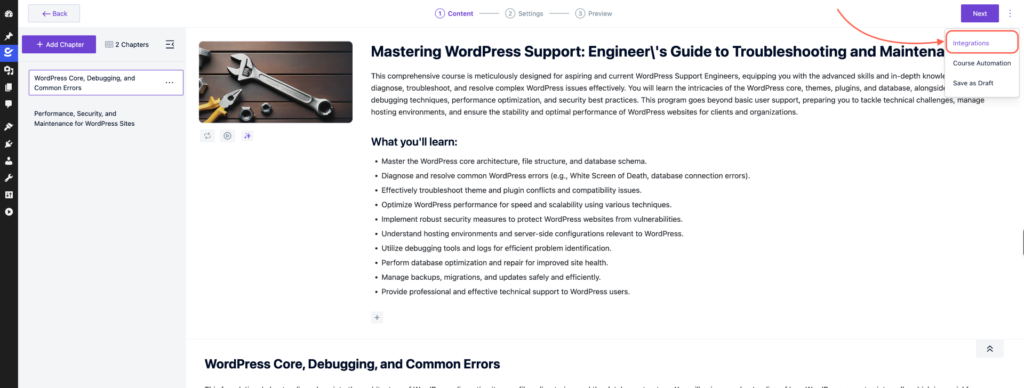
- Now, click Add New Integration.

- Set the CRM to WP Fusion.
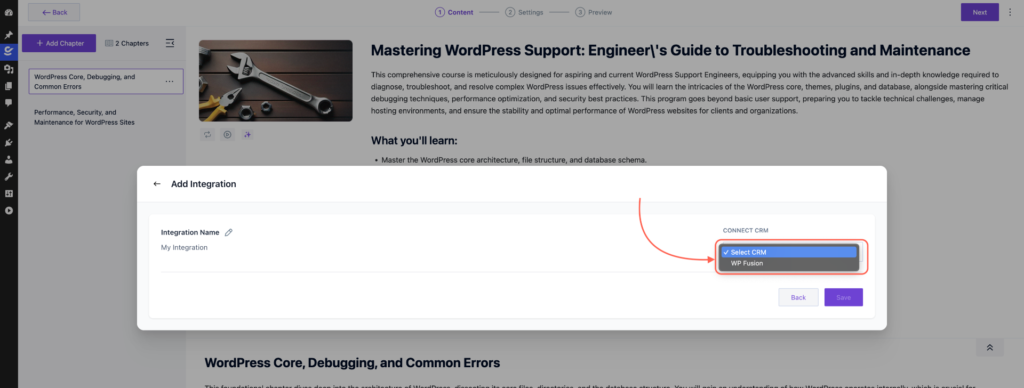
- Assign the tag or list you created in Step 3.
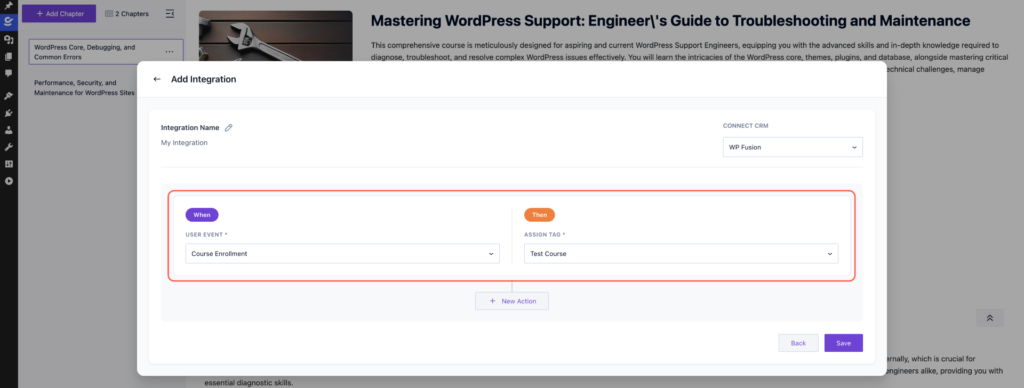
- You can add more conditions by clicking the plus icon, then setting up the trigger and choosing the tag.

Everything is now set up. Once the integration is configured, any student actions in this course (such as enrollment or completion) will automatically trigger the assigned tag or list in your CRM.
