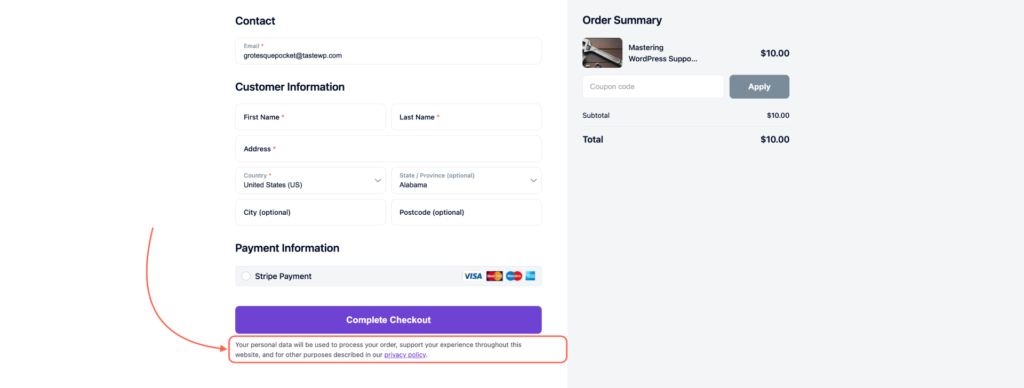
In this guide, you’ll learn how to manage and customize Account & Privacy settings in Creator LMS. These settings allow you to control and update the text that appears on your checkout page, ensuring compliance and clarity for your users.
Step 1: Open Creator LMS Dashboard
- Log in to your WordPress admin dashboard.
- Navigate to Creator LMS → Dashboard.
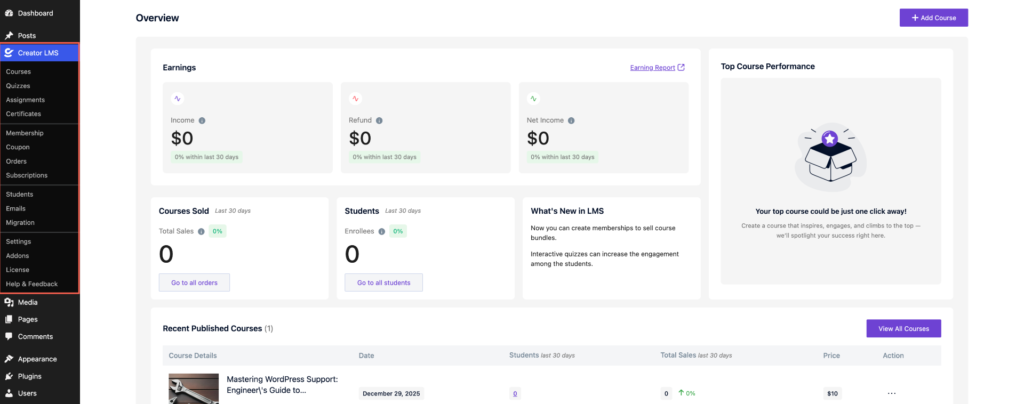
Step 2: Access Account & Privacy Settings
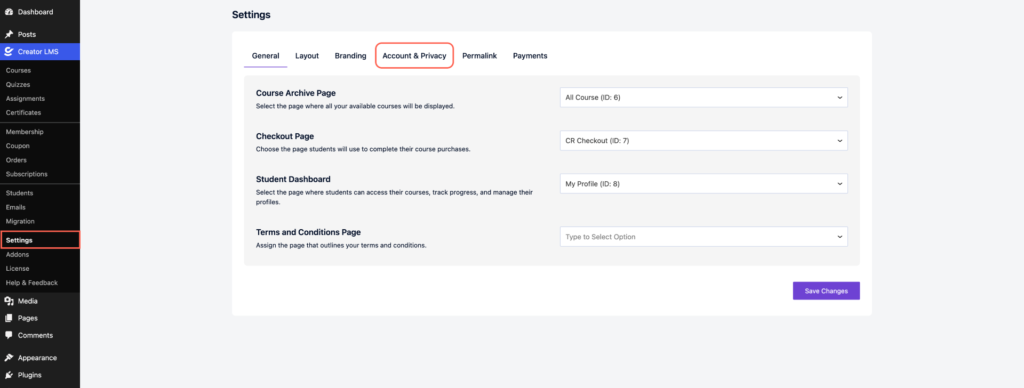
- Go to Creator LMS → Settings. Then, click on Account & Privacy.
Step 3: Update Account & Privacy Text
- You’ll see a text field where you can edit the Account & Privacy content. Modify the text according to your requirements (for example, terms, privacy notices, or consent information).
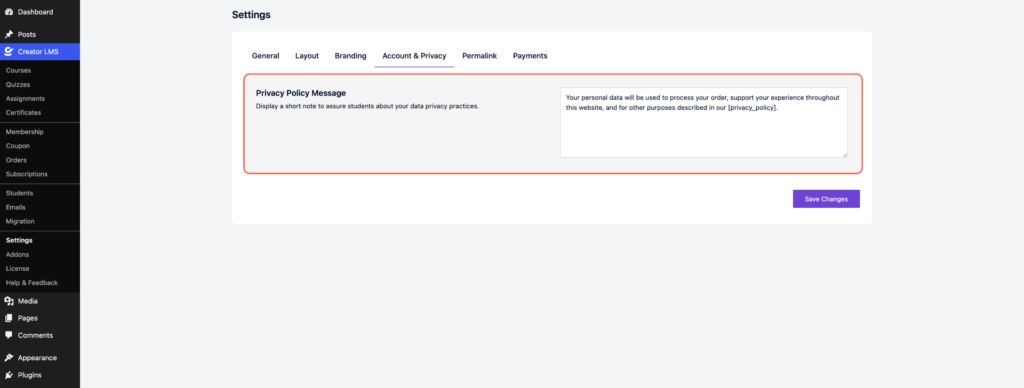
- Save your changes, then visit your Creator LMS checkout page to confirm that they are now visible to users during checkout.