

In this guide, you’ll learn how to assign tags and categories to different courses in Creator LMS. Using tags and categories helps creators organize courses efficiently and allows grouping courses for better management.
Steps to Assign Tags & Categories in Creator LMS
- Go to your WordPress dashboard and navigate to Plugins → Add New. In the search bar, type “Creator LMS”, then click Install Now, followed by Activate to enable the plugin. [See how to activate the Creator LMS plugin]
- In the Creator LMS menu on the left dashboard, you will see options for Tags and Categories.
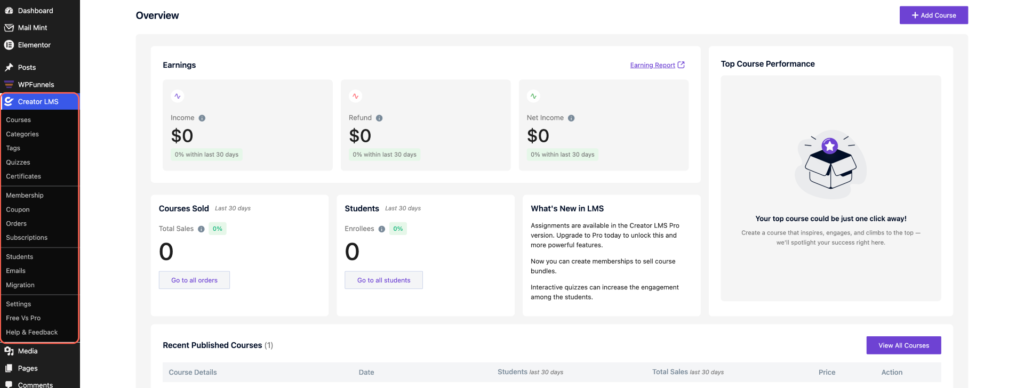
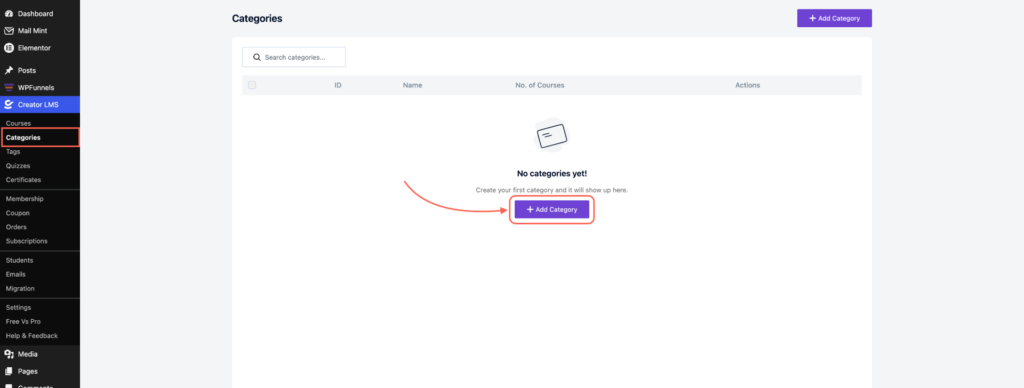
- Go to Categories and click Add Category.
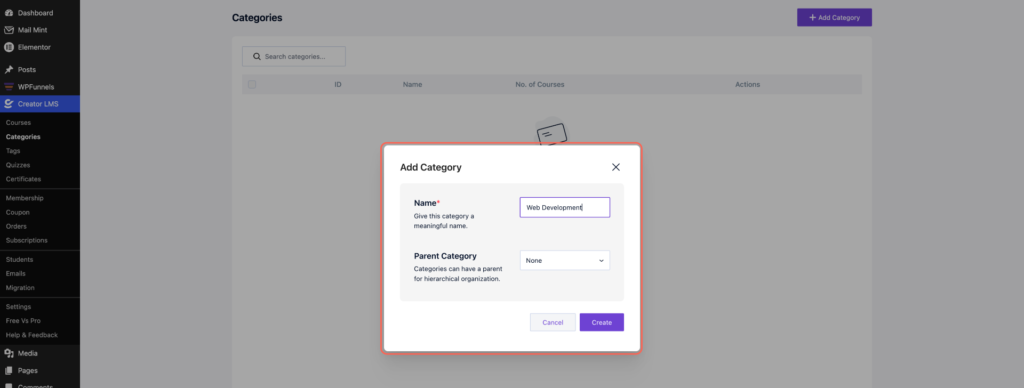
- Enter a name for your category and save it.
Similarly, go to Tags and click Add Tag. Enter the tag name and save.
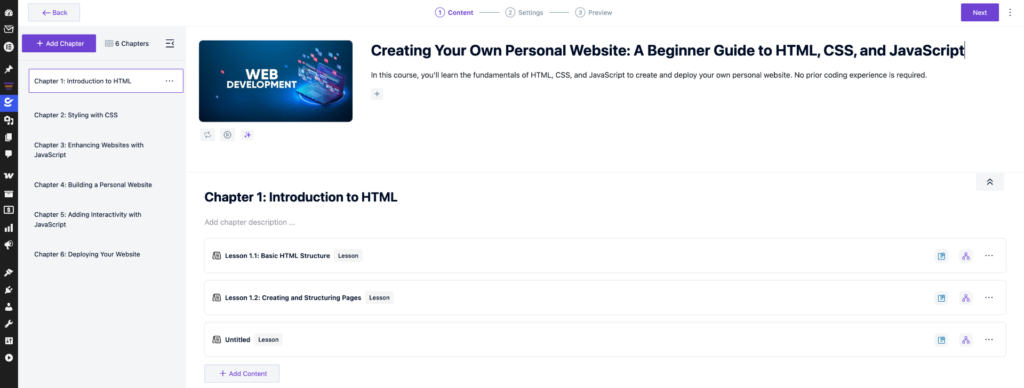
- Navigate to the Courses section and either create a new course or edit an existing one.
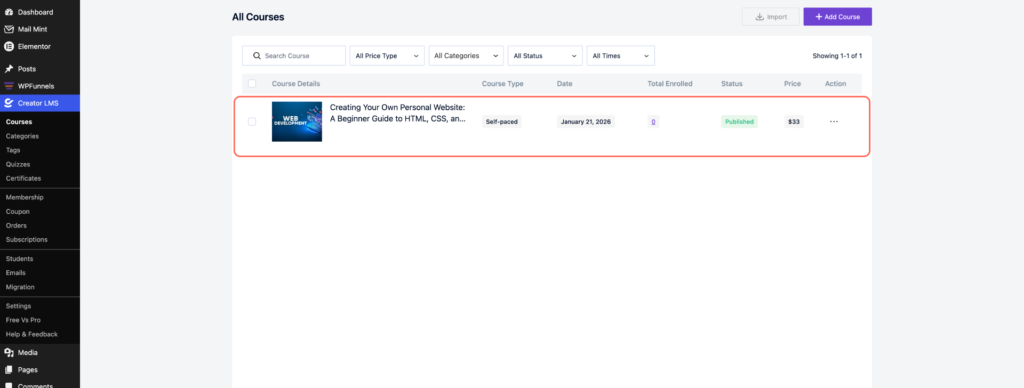
- Click on the course to open the Course Dashboard.
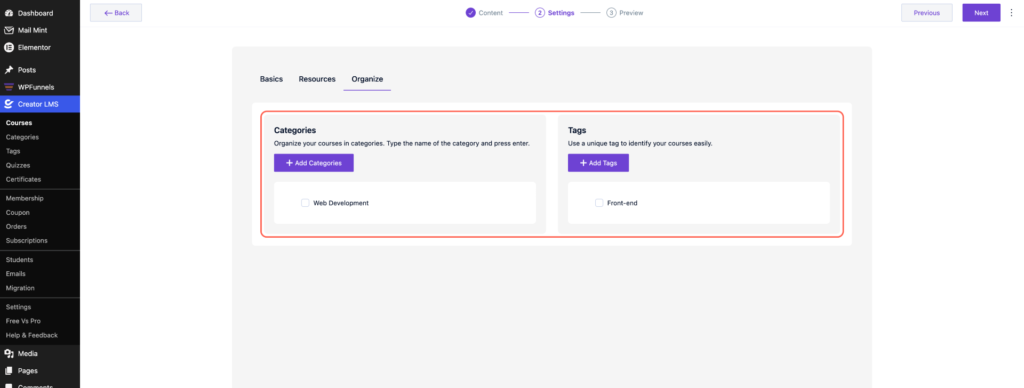
- Go to Settings → Organize. Assign the relevant tags and categories to your course.
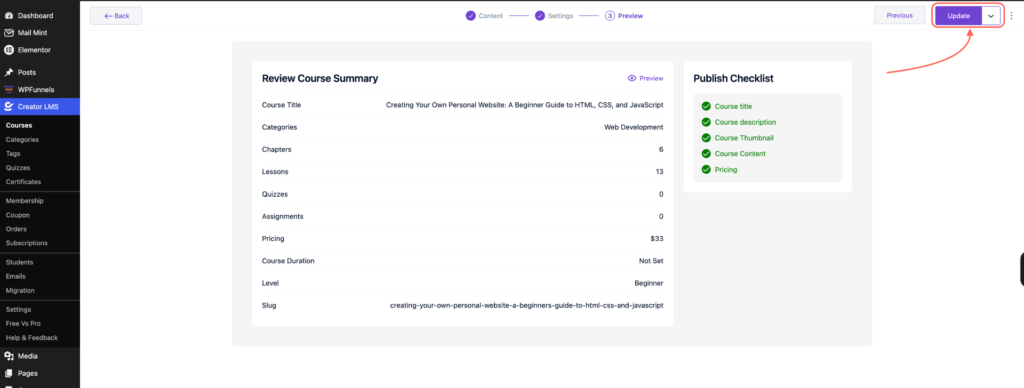
- After that, make sure to save all the changes.
You can also create new tags or categories directly from this page if needed. By assigning tags and categories, you can organize courses more efficiently, making it easier to manage courses for your students or users.
