In this guide, you’ll learn how to create and manage an event inside the Creator LMS Community.
In the previous documentation, we covered how to create a Community Space in Creator LMS. Building on that, this guide focuses on creating events within a community space, such as live classes, webinars, or in-person meetups.
Before getting started, make sure that Creator LMS Pro is installed and activated on your site, the Community Add-on is enabled from the Creator LMS Pro settings, and a Community Space has already been created. If you haven’t created a community space yet, please refer to the guide on How to Create a Community Space in Creator LMS.
Step 1: Create or Select a Community Space
- Go to Creator LMS → Community, and create a new community space or select an existing one.

Inside the community space, you’ll find an option called Create Event.
Step 2: Create a New Event
- Click on Create Event

- A pop-up will appear with the event configuration options
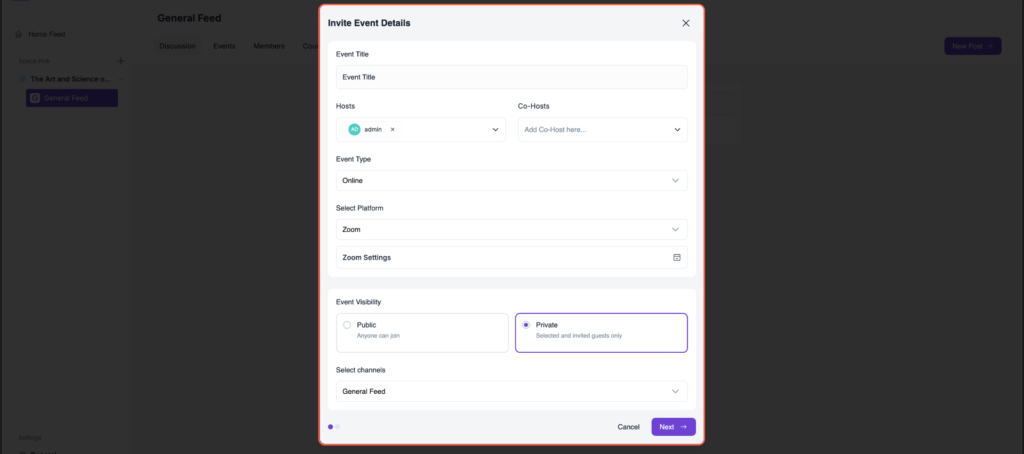
Step 3: Configure Event Details
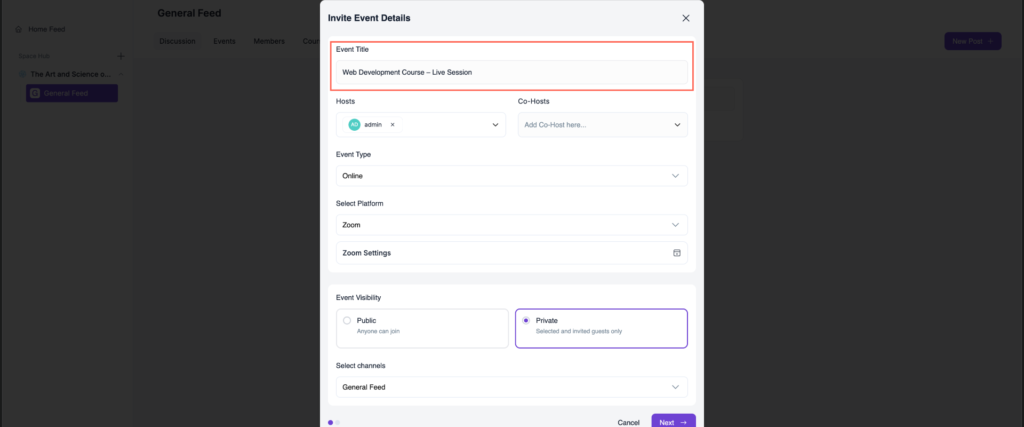
- Event Title: Enter a clear and descriptive title. Example: Web Development Course – Live Session
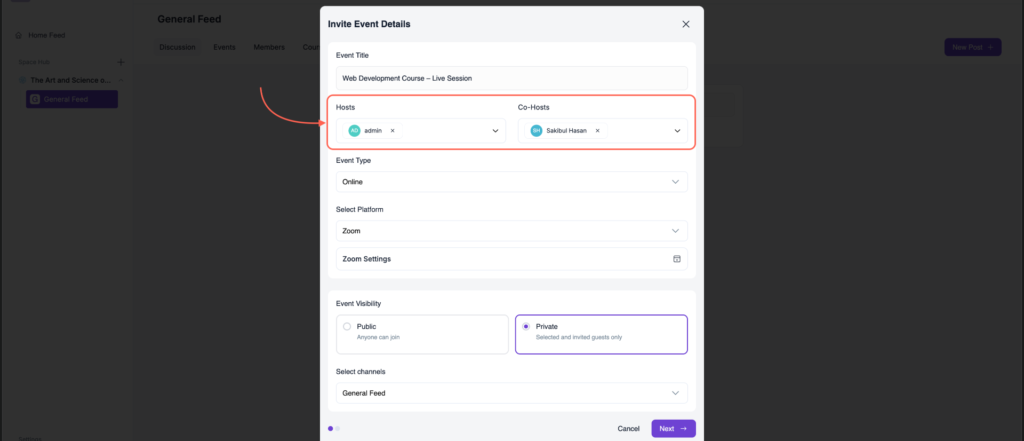
- Host & Co-host: Assign the Host for the event. Optionally, assign one or more Co-hosts
- Event Type: Choose one of the following event types:
- Online Event: Select Zoom or Google Meet. Configure the required meeting settings for the selected platform.
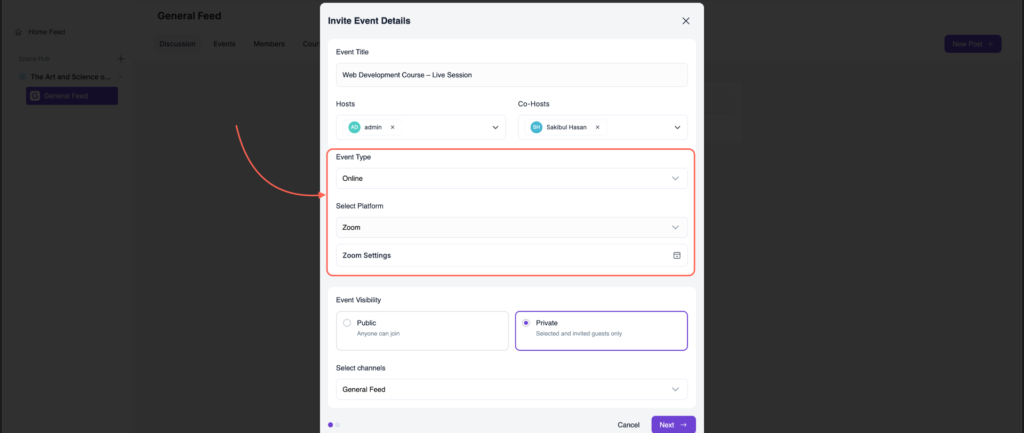
- In-Person Event: Enter the physical location of the event

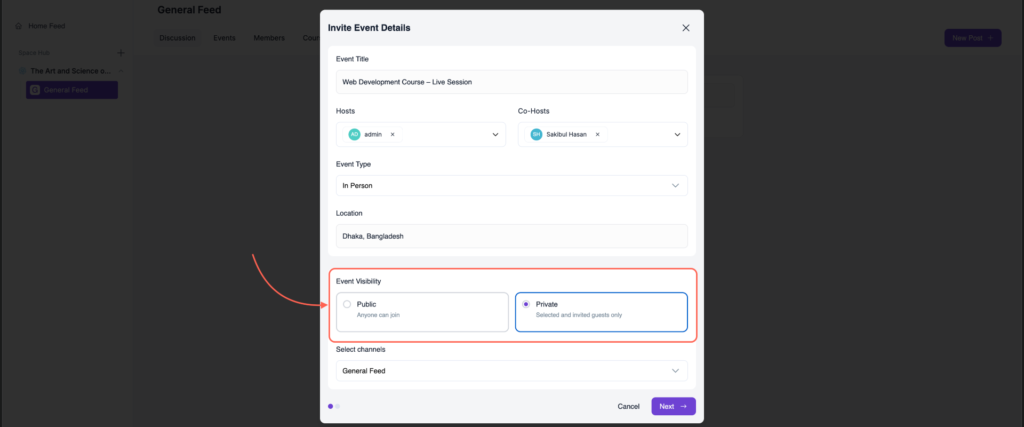
Step 4: Set Event Visibility
- Choose who can access the event:
- Public – Any community member (even from other spaces) can join
- Private – Only members of the current community space can join
Step 5: Choose Channel & Proceed
- Select the appropriate Channel, and click Next to continue

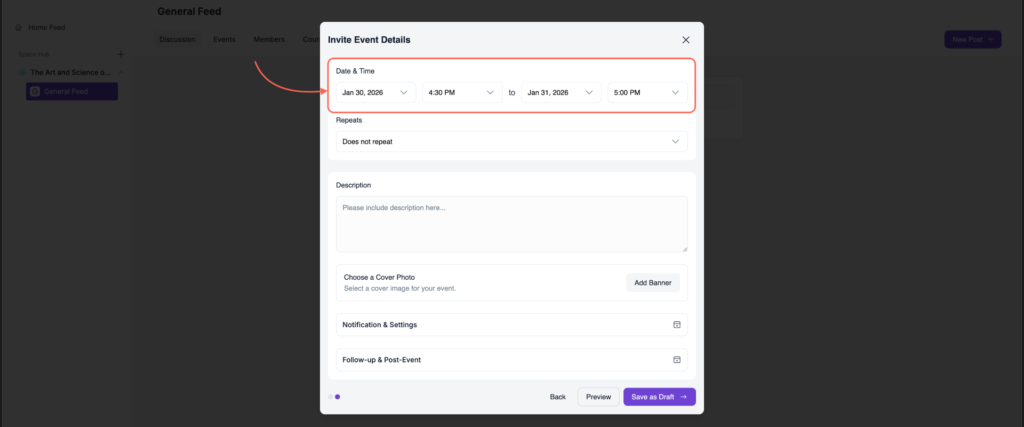
Step 6: Set Date, Time & Recurrence
- Choose the Event Date and Time.
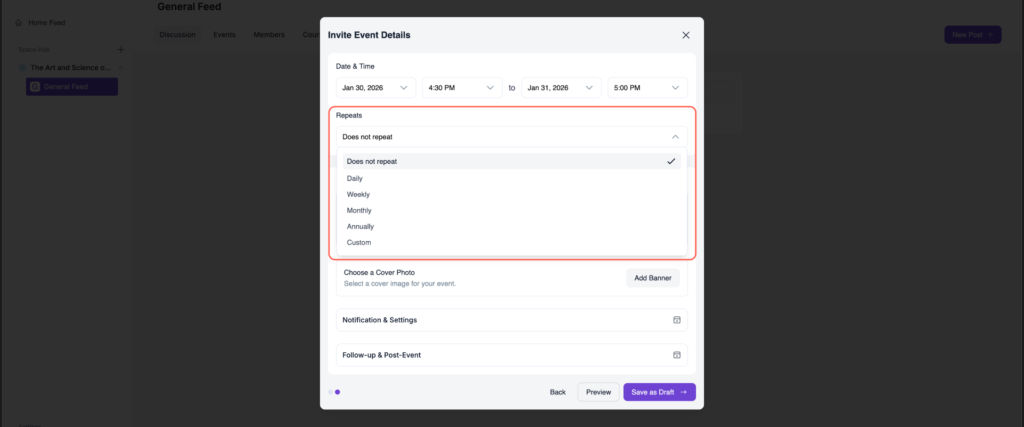
- Set the Event Repeat option, if needed:
- One-time
- Daily
- Weekly
- Monthly
- Annualy
- Custom
Step 7: Add Description & Cover Image
- Add a detailed Event Description, and upload a Cover Image for the event.

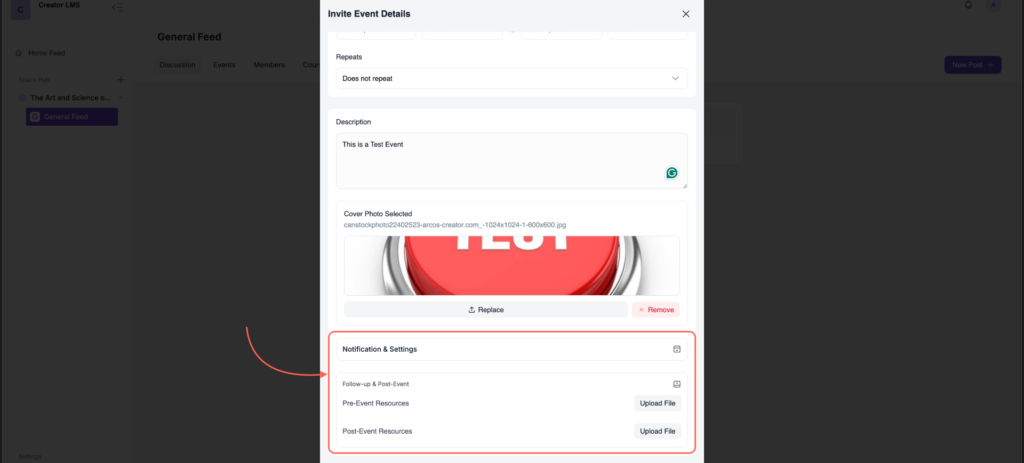
Step 8: Notification & Event Settings
- Configure additional event settings as needed, like:
- Notifications: Enable Auto Email Reminders. Set reminder timing (e.g., hours before the event)
- Event Controls: Restrict posting to Hosts only, if required, and set Attendee Capacity

Step 9: Follow-up & Post-Event Settings
- Event Recording: Enable Record Event (if supported by the selected platform)
- Pre-Event Resources: Upload files or materials for attendees before the event
- Post-Event Resources: Upload recordings, slides, or additional files after the event
- Click Save as Draft to edit later.
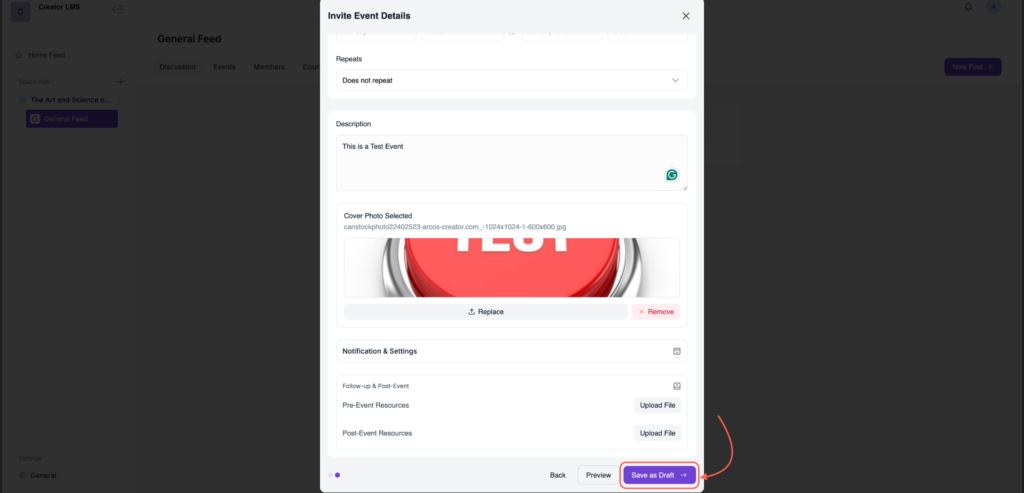
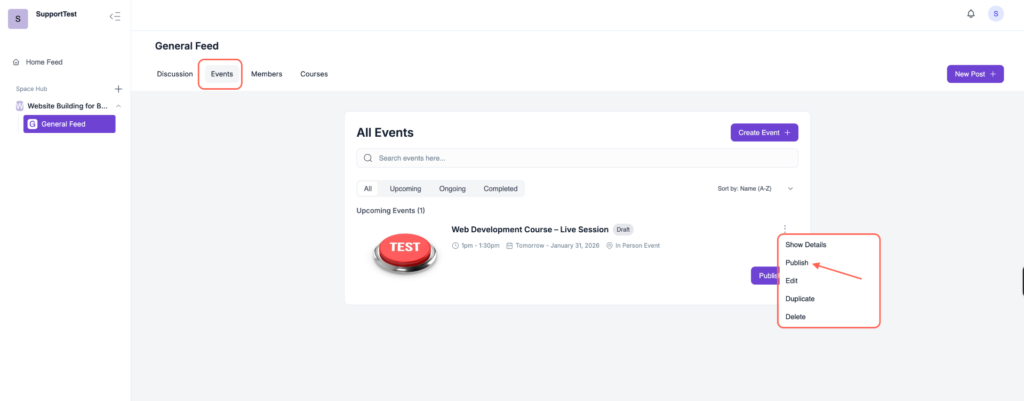
- Now that the event is ready, go to the Community Space, locate your event, and publish it.