
Click on the community menu from the admin dashboard to be taken to the frontend interface. The URL is usually yoursite.com/community
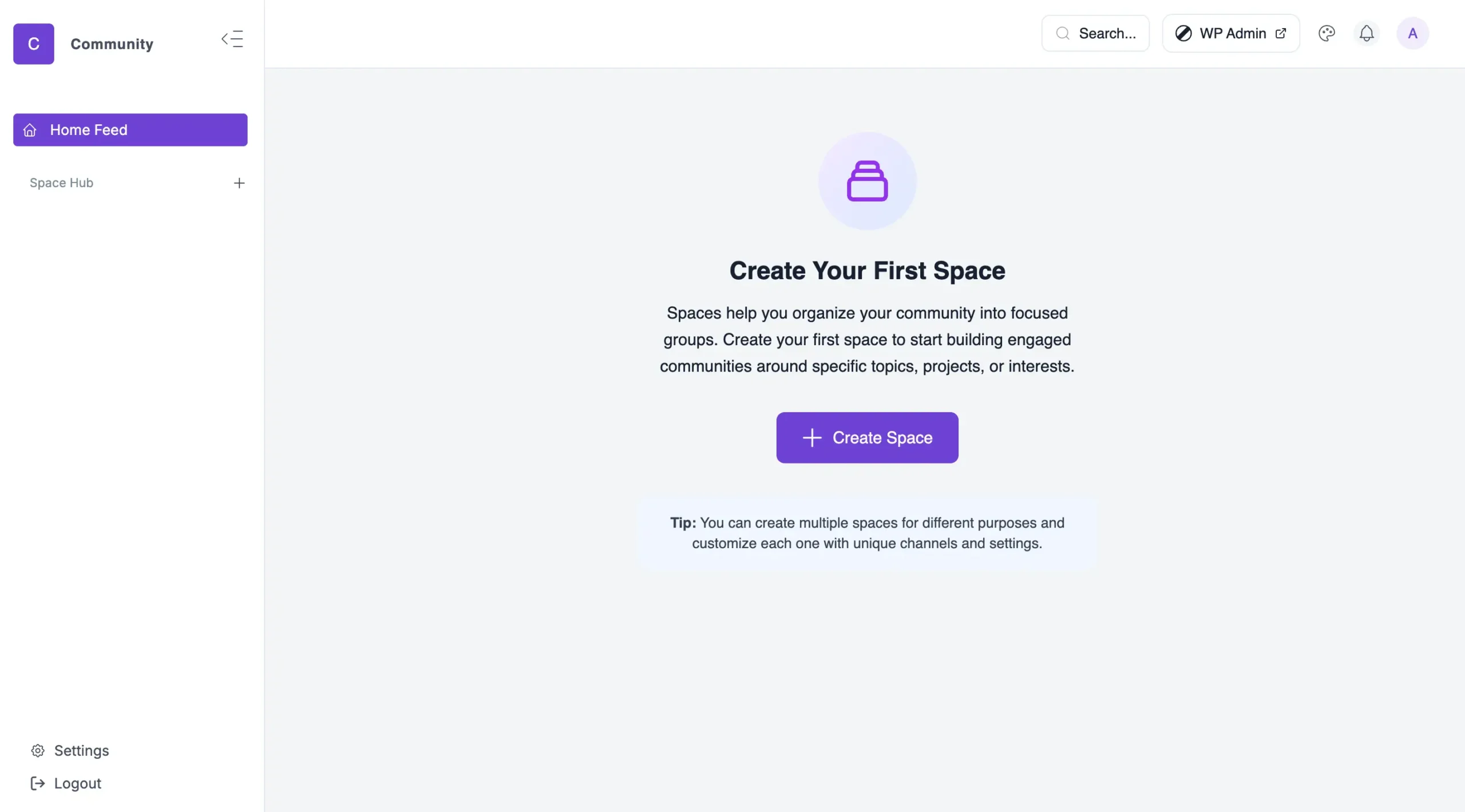
The community is operated through different spaces. You can imagine spaces as sub-reddits or different Facebook groups.
Creating a New Space
You can always create new spaces from the course details section or from the frontend interface.
- Emoji: You can pick an emoji to help people identify the space faster and remember spaces easily. Click on the color palette emoji to customize.
- Space Name: This is a mandatory field. It would also assist the system to generate a similar URL or slug for the community. If you name the community as Baking Pies then the community link would become
yoursite.com/community/baking-pies/
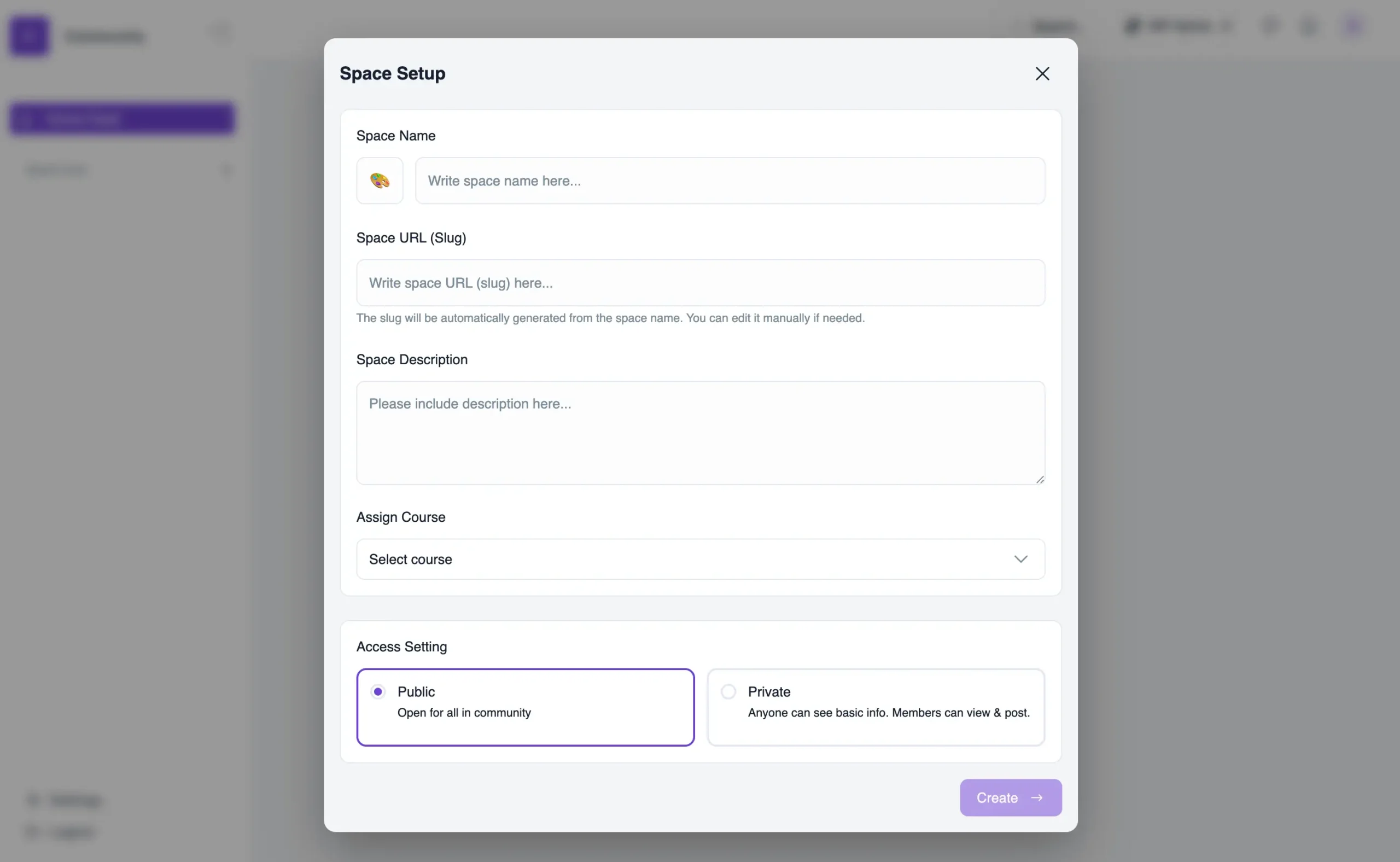
- Space URL (Slug): This is an optional field and gets generated automatically. You’re welcome to customize it any way you like.
- Space Description: This is optional and it helps people to understand what is this space is about.
- Assign a course: It is optional if you do not want to restrict the group to a course students. You can keep some of the spaces open to generate curiosity and use for lead generation purposes.
- Access Setting: You can set the privacy level from here.
