

In this guide, you’ll learn how to use custom HTML content in your Creator LMS courses. This is useful if you want to display any HTML code directly within your course, such as custom layouts, embeds, or widgets.
Step 1 – Open a Course in Course Builder
- Log in to your WordPress dashboard. Go to Creator LMS → Courses.
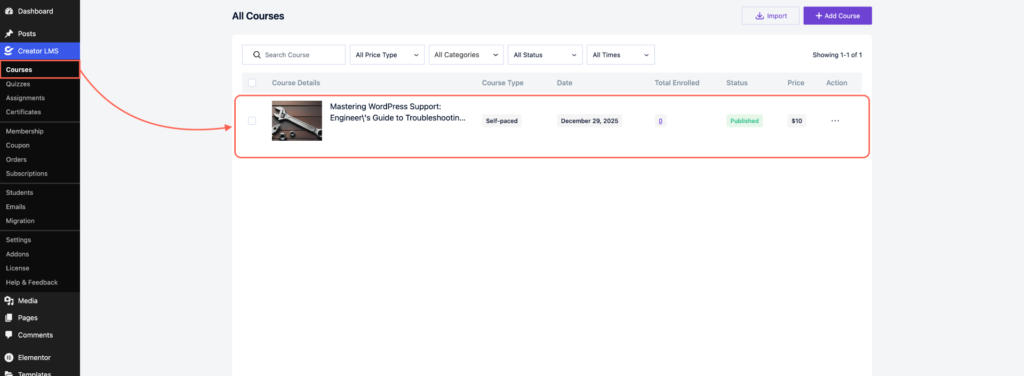
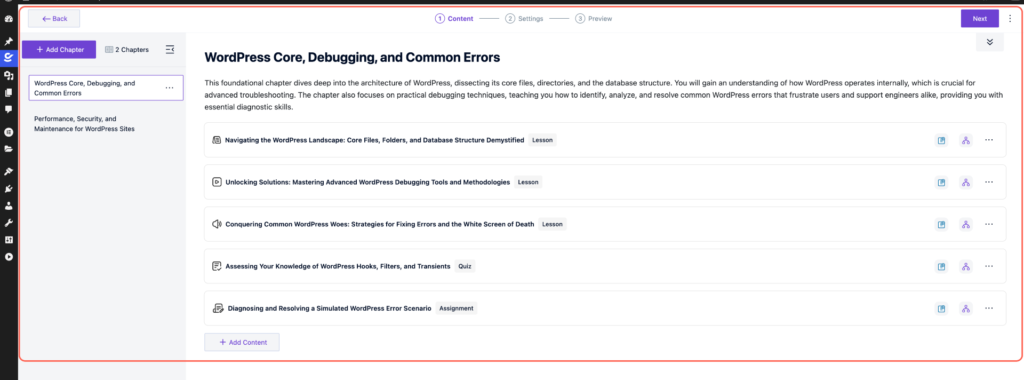
- Either create a new course or edit an existing course.
Step 2 – Add Content
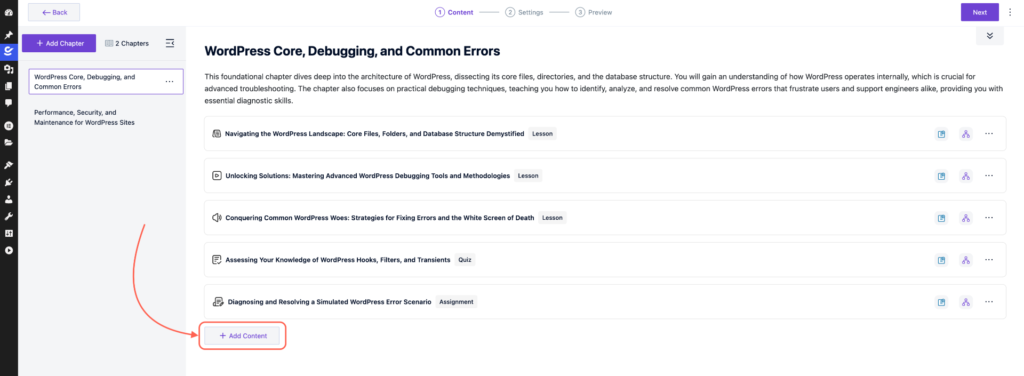
- In the Course Builder, click Add Content.
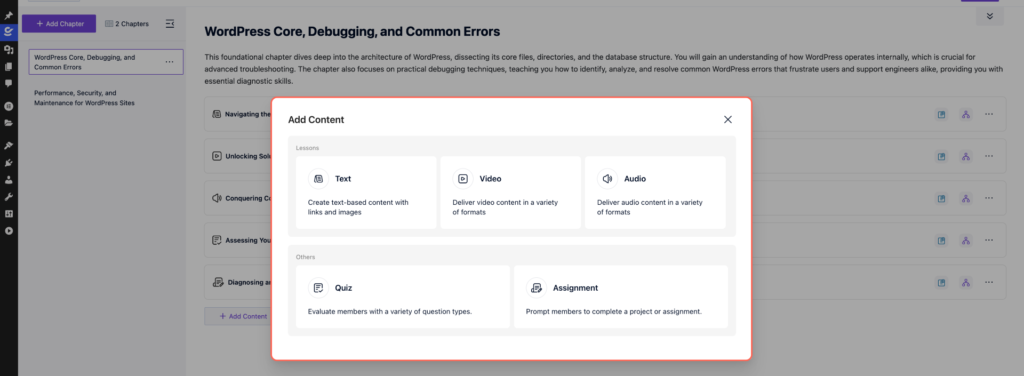
- Choose the type of content you want to add (Text, Video, or any other type).
Step 3 – Add a Custom HTML Block
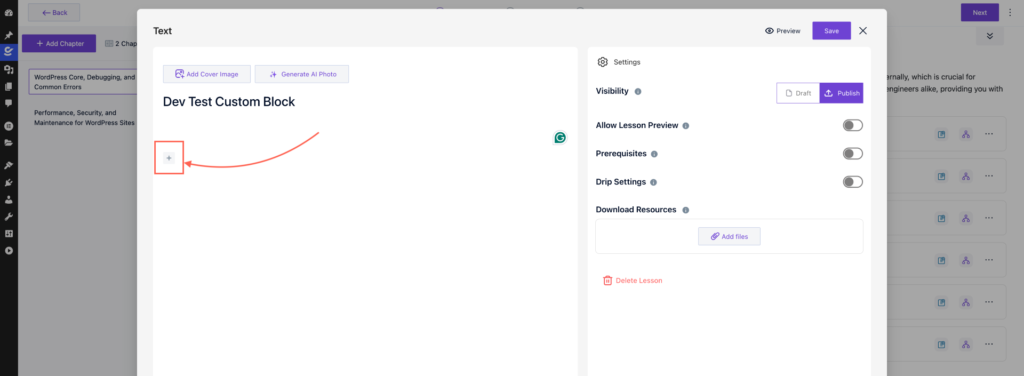
- Click the plus (+) icon inside the content section.
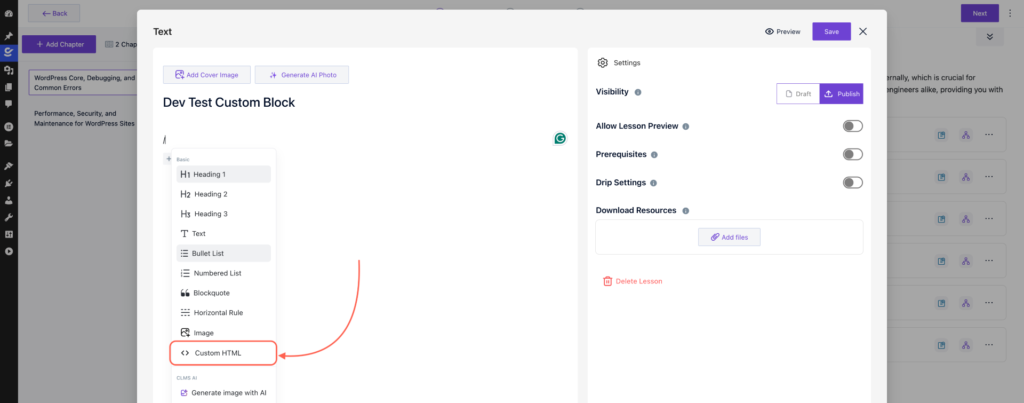
- Select the Custom HTML option.
Step 4 – Insert Your HTML Code & Preview
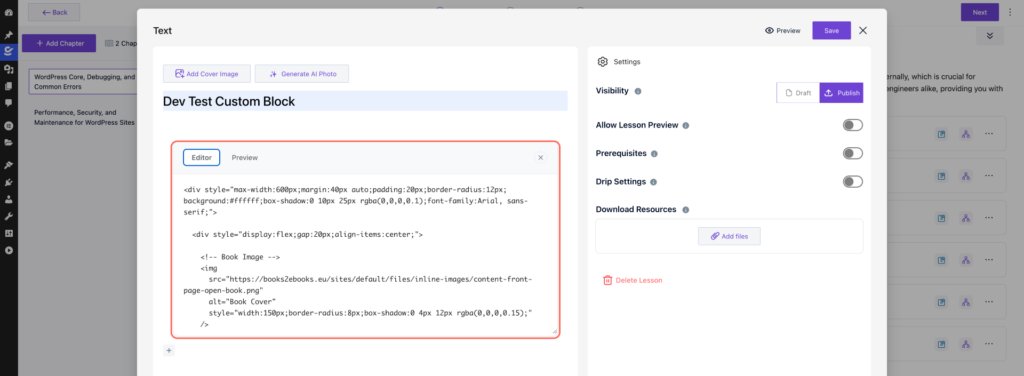
- Paste your HTML code into the HTML code block.
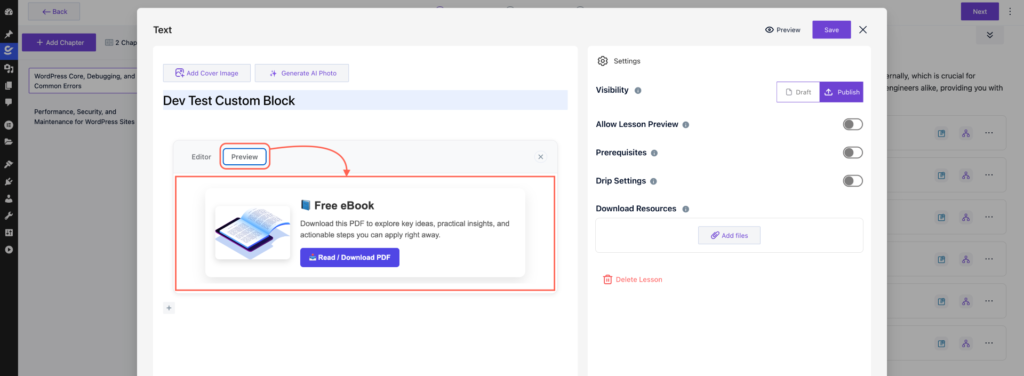
- Click the Preview icon to see how your HTML content will appear in the course.
Once you’re satisfied with the content, save your changes. Your custom HTML will now appear along with other course content. You can use this method to include not only text or video, but also any custom HTML code you want in your course.
