
In this documentation, you’ll learn how to connect Webhooks with Creator LMS to automate communication with external services. Webhooks allow Creator LMS to instantly send event-based notifications—such as new enrollments, course completions, or quiz submissions—to third-party platforms.
Prerequisites: Before enabling Webhooks, make sure you have:
- Creator LMS Basic installed and activated
- Creator LMS Pro installed and activated
Both versions are required to access and use the Webhooks functionality.
Step 1: How to Enable Webhooks
- Go to CLMS → Addons and locate the Webhooks option.
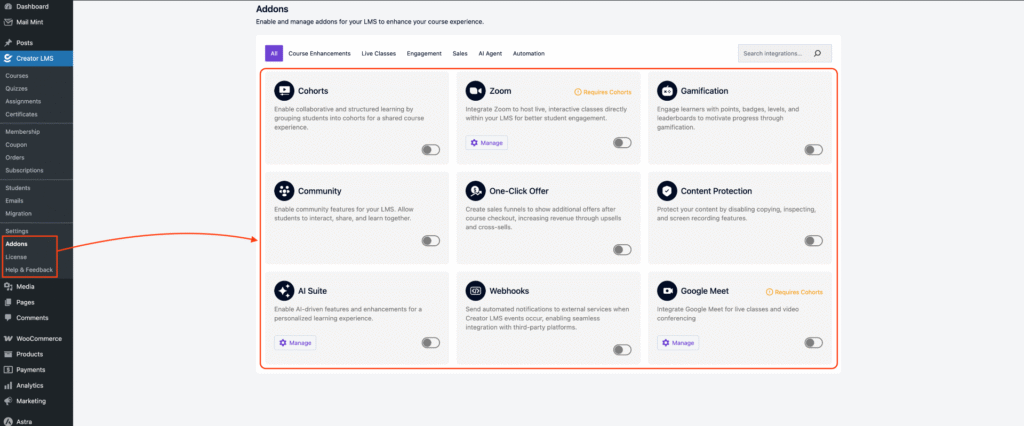
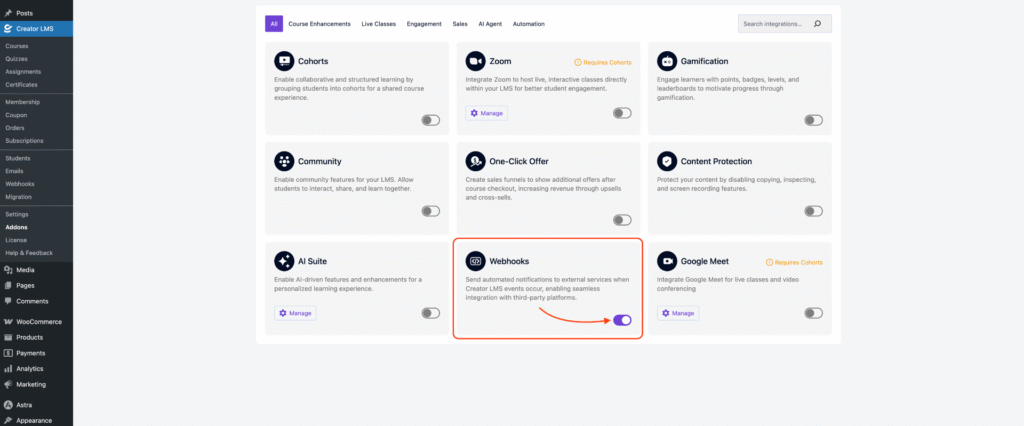
- Enable the Webhooks toggle to activate the feature.
- Once enabled, a new Webhooks menu item will appear in the left sidebar under the CLMS menu.
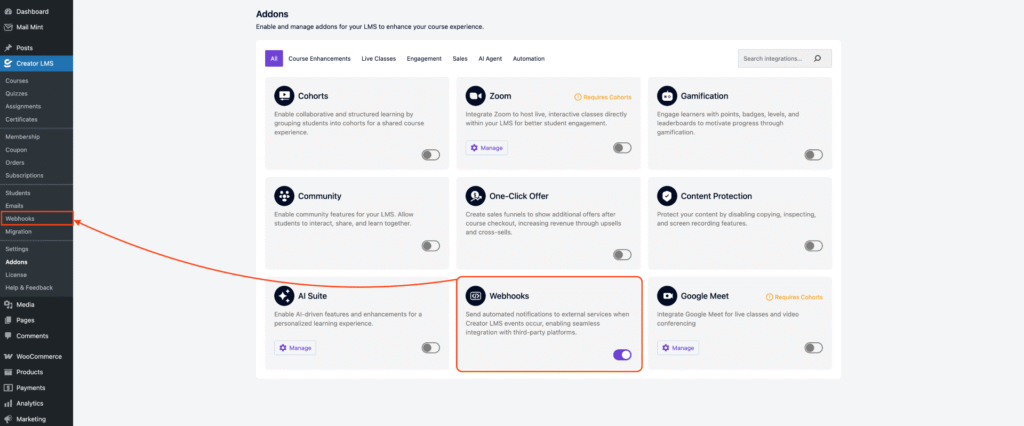
Click on Webhooks to start creating and managing webhook endpoints.
Step 2: How to Set Up Webhooks
After enabling Webhooks, follow these steps to configure them:
- Go to Webhooks in the CLMS sidebar to open the Webhook Dashboard.
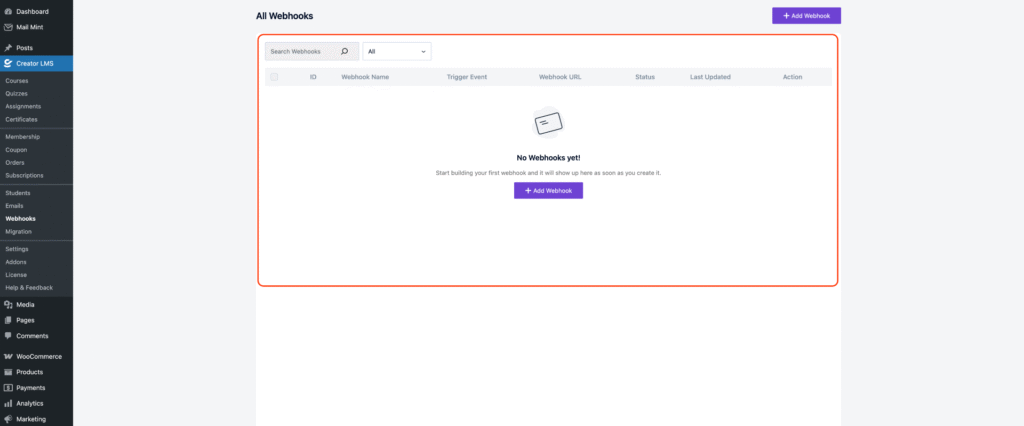
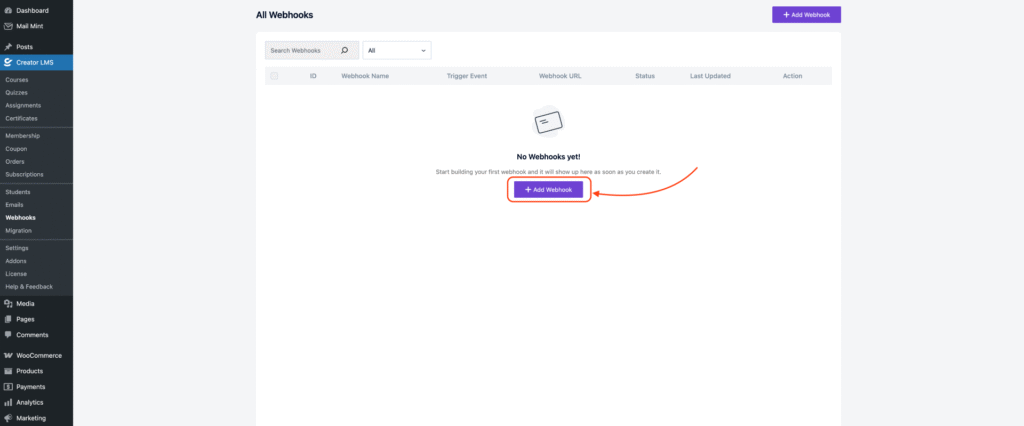
- Click Add Webhook to create a new webhook. A popup window will appear with configuration options.
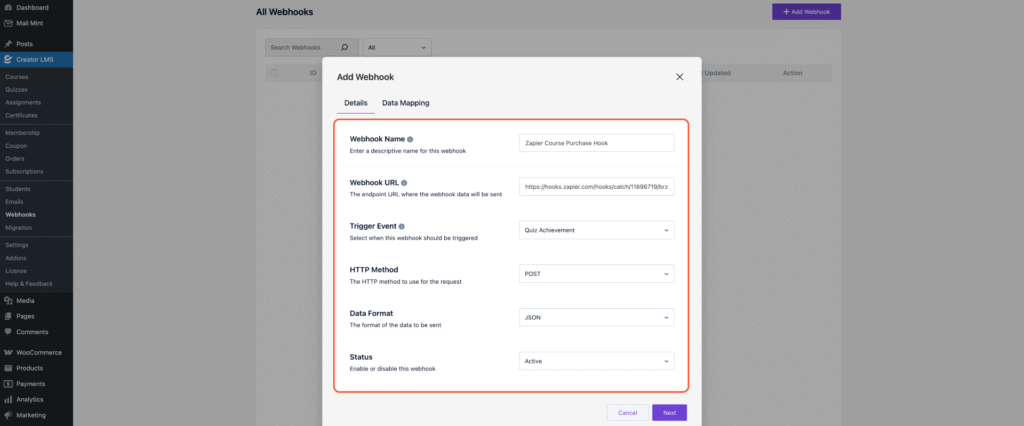
- Fill in the following details:
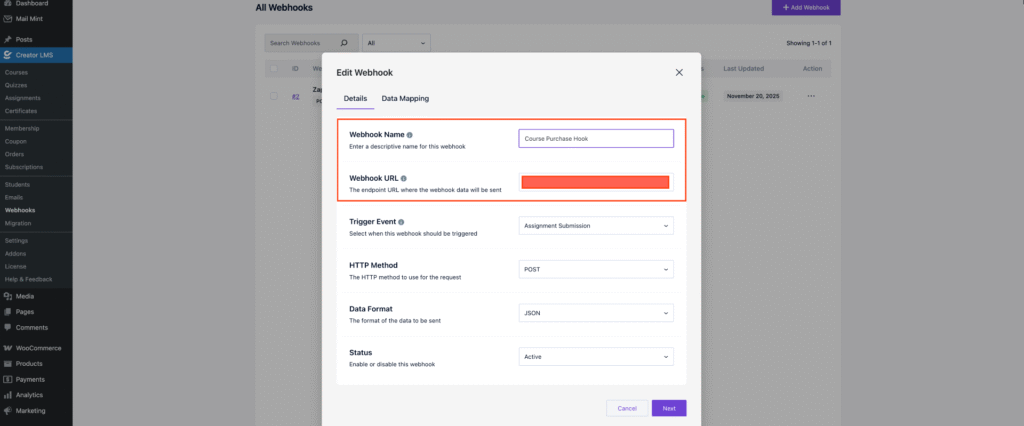
- Webhook Name: Enter a descriptive name for your webhook.
Example:Course Purchase Hook
Note: The name is required. - Webhook URL: Enter the endpoint URL where the webhook data will be sent.
Example:https://hooks.zapier.com/hooks/catch/11896719/brzfge4
- Webhook Name: Enter a descriptive name for your webhook.
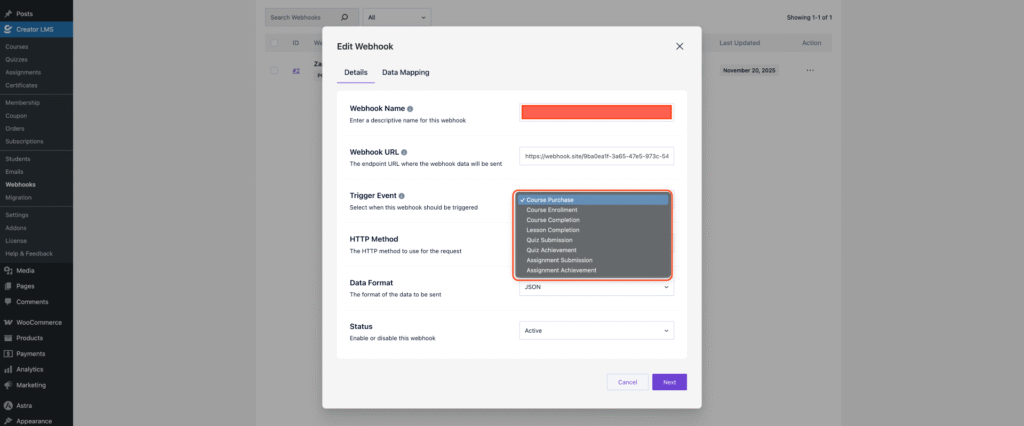
- Set the Trigger Event by selecting when this webhook should be triggered, such as
- Course Purchase
- Course Enrollment
- Course Completion
- Lesson Completion
- Quiz Submission / Quiz Achievement
- Assignment Submission
- Assignment Achievement
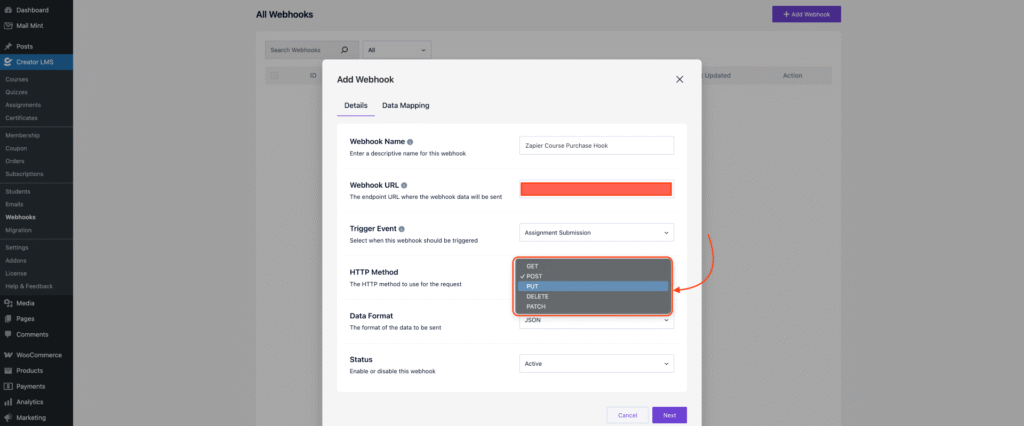
- Select the HTTP method to use for sending the webhook request. The available options are:
-
GET– retrieves data from the server without making changes. -
POST– sends new data or triggers actions on the server; default. -
PUT– updates existing data on the server. DELETE– removes data from the server.
-
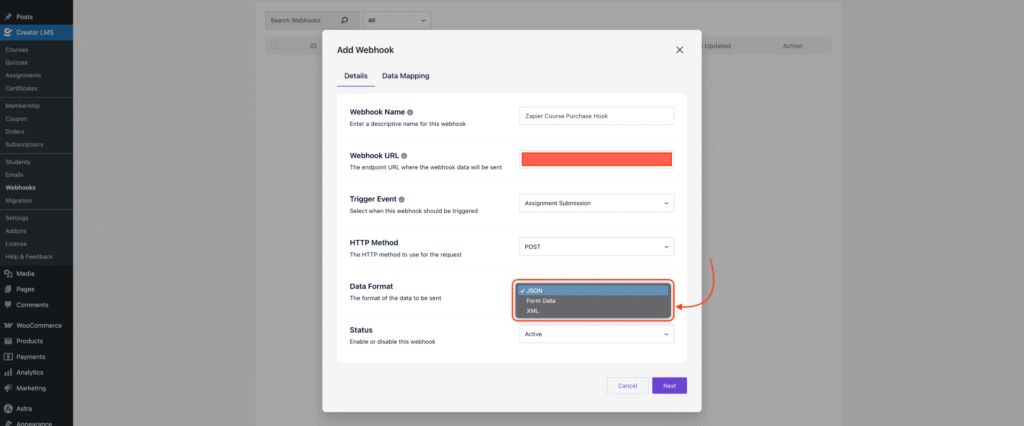
- Choose the format for sending the webhook data—options include
JSON(default),Form Data, orXML—and set the webhook status.
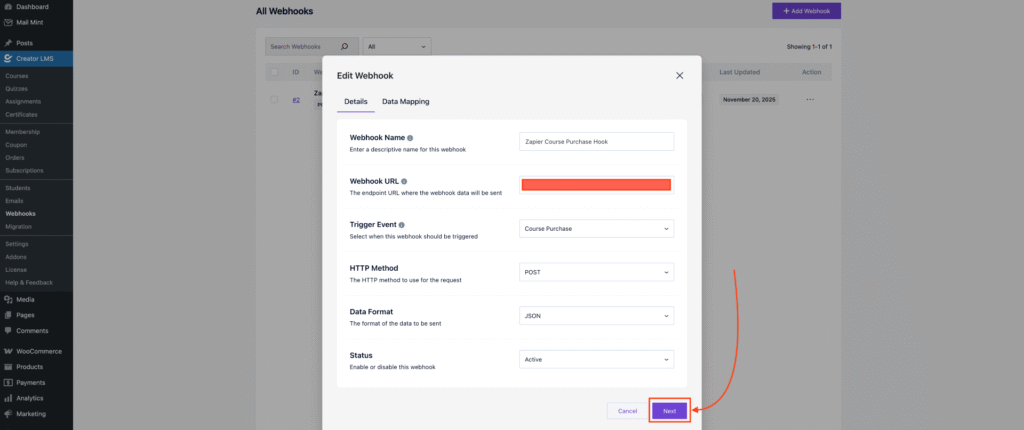
- You can enable or disable the webhook at any time to activate or deactivate it as needed. Now, Click Next.
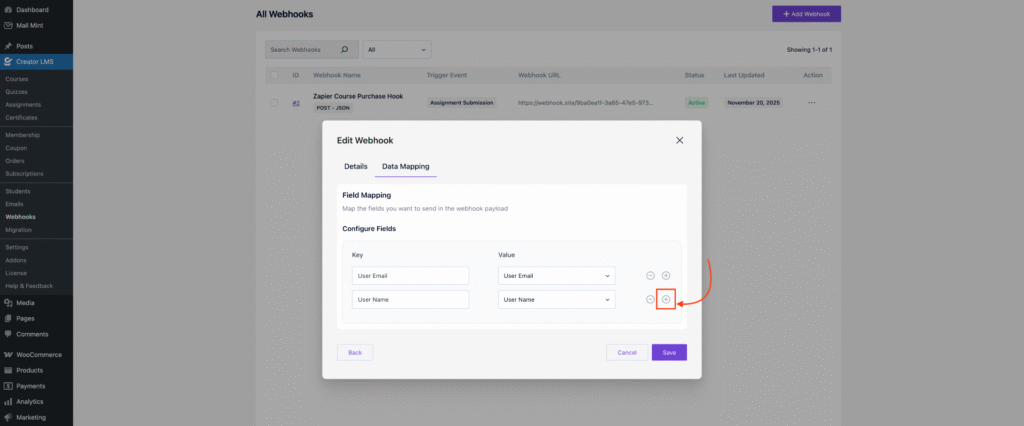
- Map the webhook data to the appropriate fields in your external service to ensure each piece of information is correctly processed.
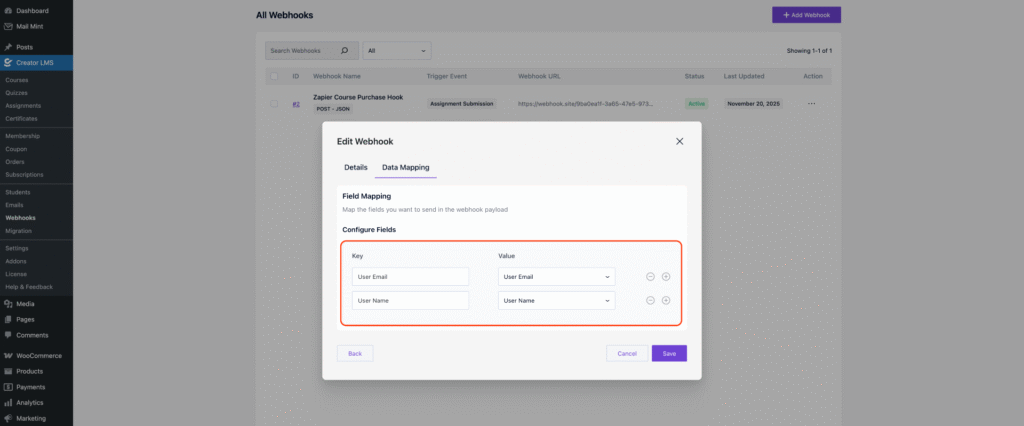
- Click the plus (+) icon to add more fields for mapping webhook data, then click save.
- Now, for example, if you purchase a course, the relevant data will be sent automatically through the webhook to the configured external service, allowing real-time updates and automation.

By following the steps outlined in this guide, you can seamlessly integrate Creator LMS with external services using Webhooks.
