
In this doc, we will learn how to set up and configure Razorpay as a payment gateway in Creator LMS. By following this guide, you can easily accept online payments for your courses and provide a smooth checkout experience for your learners.
Prerequisites: Before we start, ensure that both the Basic and Pro versions of Creator LMS are installed.
Step 1: Accessing Razorpay Payment Settings
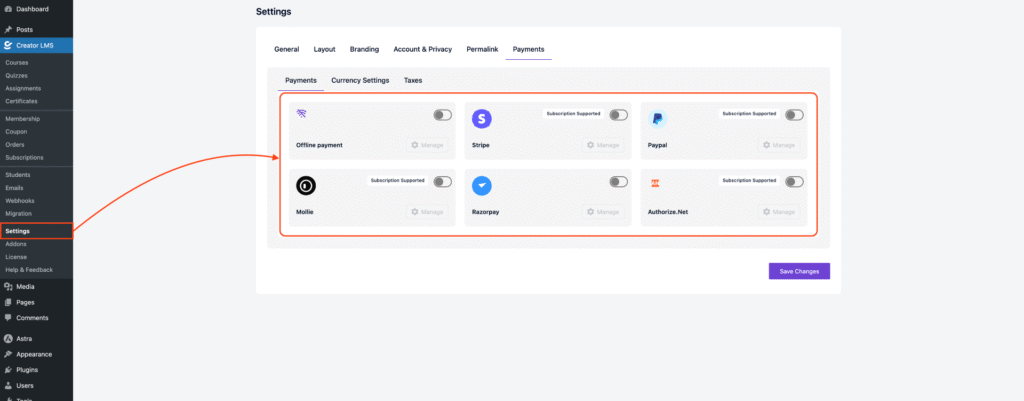
- To access the Razorpay payment gateway settings, navigate to: CLMS → Settings → Payments, then scroll down to locate the Razorpay Payment option.
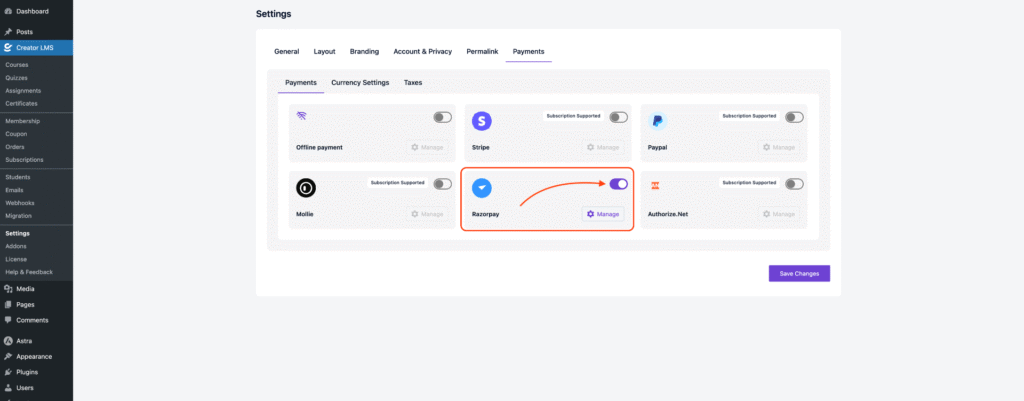
- Enable the Razorpay payment option, then you will see a “Manage” button.
Step 2: Configuring Razorpay Payment Options
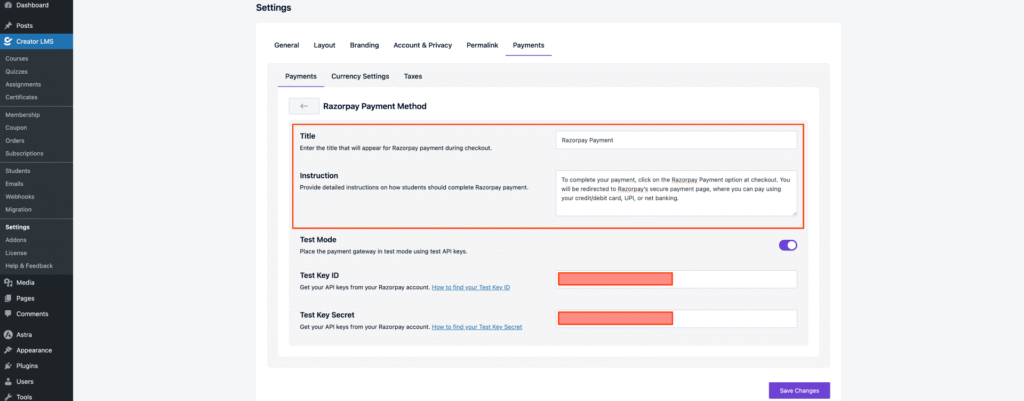
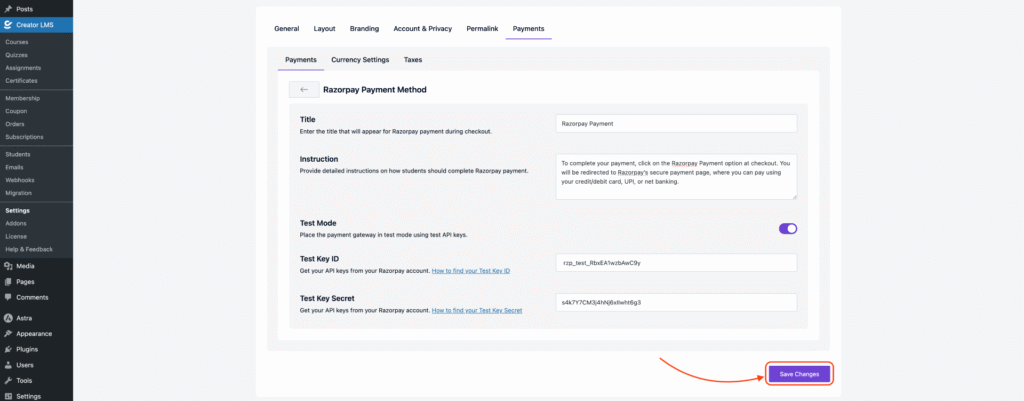
- After clicking the Manage button, you will be taken to the Razorpay payment settings page where you can configure your gateway options.

- Enter the Payment Title, which appears on the checkout page, and a short Payment Description.
- For testing payments, toggle the Test Mode switch to ON, or proceed with live payments using your Razorpay account.
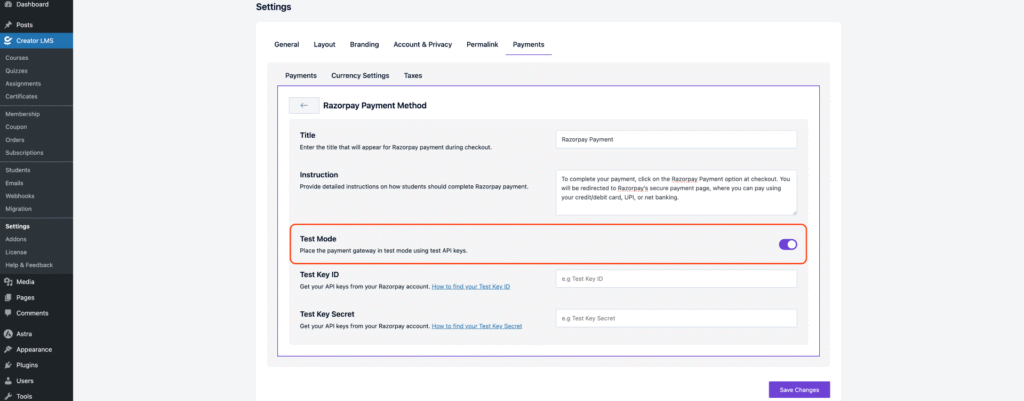
- Now, you need to enter your Razorpay sandbox credentials on the payment settings page:
- Test Key ID: Get your Test Key ID from your Razorpay account.
- Test Key Secret: Get your Test Key Secret from your Razorpay account.

- After configuring your currency settings, ensure you click Save Changes at the bottom of the settings page to apply the updates.
- So now, if you visit the checkout page, you will see the Razorpay payment options available.
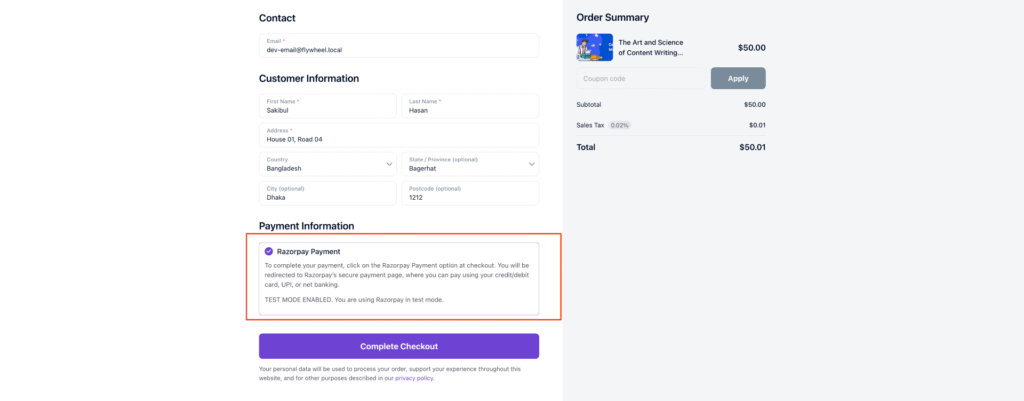
That’s it! Your Offline Payment setup is now complete and ready to use.
