
Creator LMS allows you to design fully responsive and customizable course pages using your favorite page builder.
If you use Elementor, this guide will show you how to create and customize pages such as the Course Dashboard, Checkout, Sales Page, Cart, or Offer Details using Creator LMS widgets inside Elementor.
Before you begin, ensure both Elementor Builder and Creator LMS are installed and activated.
With the free version, you’ll find 2 widgets available in Elementor, while Creator LMS Pro unlocks 4 widgets for more flexible and advanced page designs.
Step 1 – Go to the Pages Section
- From your WordPress dashboard, navigate to: Pages → All Pages
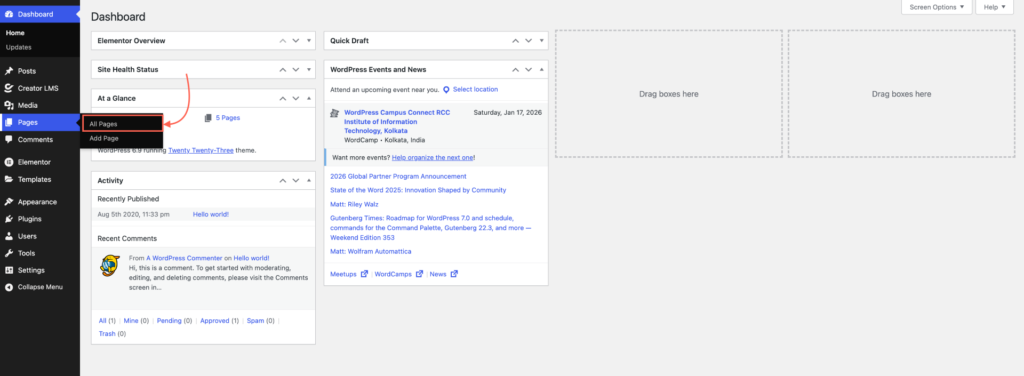
- When you install Creator LMS, some pre-built pages — like the Course Dashboard, Checkout, and Cart page, etc — are automatically created and saved under your Pages list.

Step 2 – Edit the Page with Elementor
- Click Add New Page or edit any existing page.

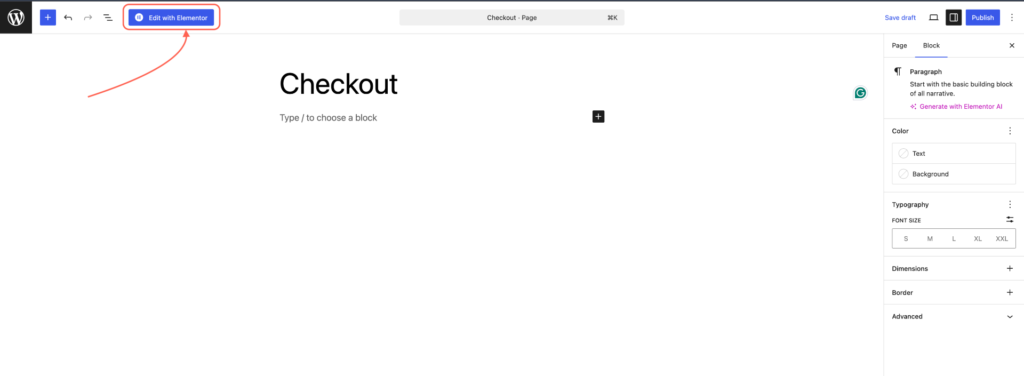
- Now, add a title—for example, ‘Checkout’—then click Edit with Elementor. The page will open in Elementor Builder.
Step 3 – Access Creator LMS Widgets in Elementor
- In the Elementor left-side widget panel, scroll down. Locate the Creator LMS widget section. If you are using:
- Creator LMS (Free) → You’ll see 2 widgets.
- Creator LMS Pro → You’ll see 4 widgets.

Step 4 – Add a Widget (Example: Checkout Page)
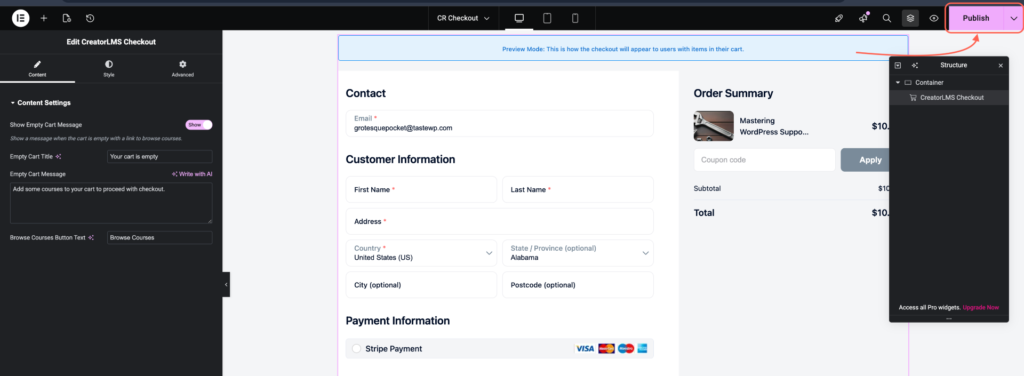
- Drag and drop the Checkout Widget from the Creator LMS section into your page layout.
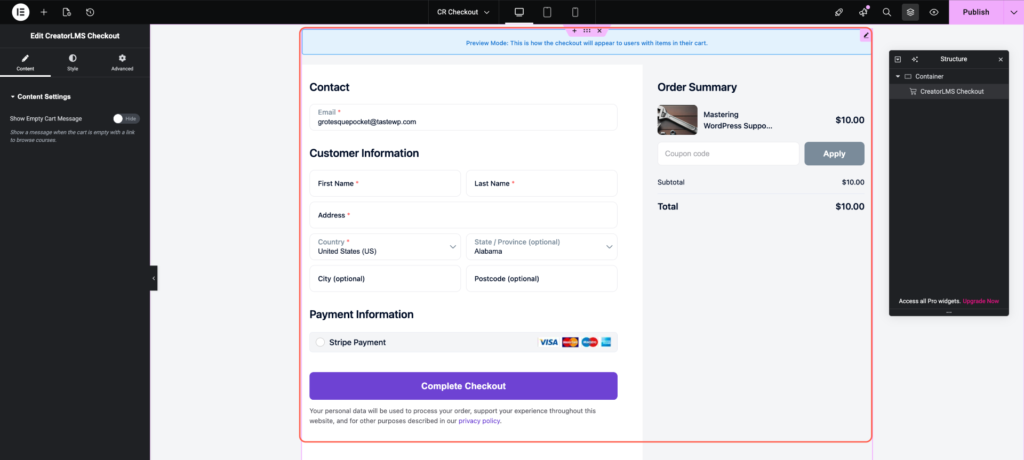
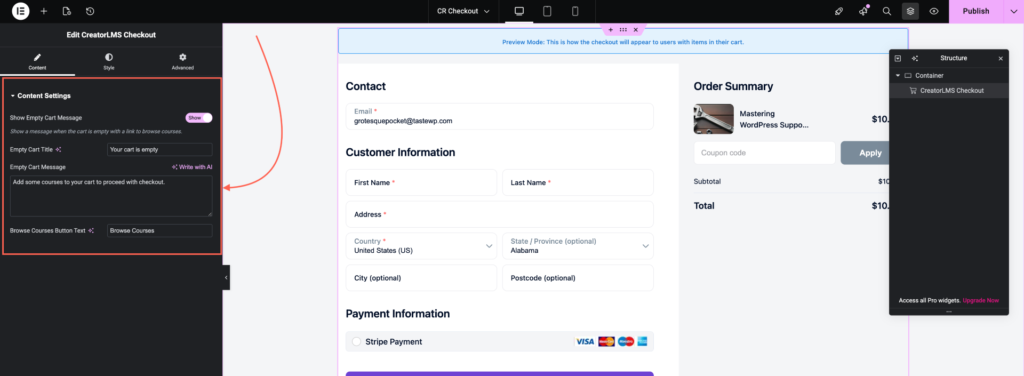
- Once added, configure the widget using the Elementor settings panel, including:
- Show Empty Cart Message: Enable this option to display a message when the cart is empty.
- Empty Cart Title: Customize the title shown when no items are in the cart (e.g., “Your cart is empty”).
- Empty Cart Message: Add a short description with a link to browse courses and guide users back to your course catalog.
- Once you’re satisfied with the design, click Publish or Update to save your changes.
Additional Tips:
You can use other Creator LMS Elementor widgets in the same way to enhance your course pages:
- Course List Widget: Display all available courses on a landing page or archive.
- Buy Now Button: Add it to your Sales Page to send users directly to the cart.
- Offer Button: Use it to create upsell or downsell offers within your course flow.
