

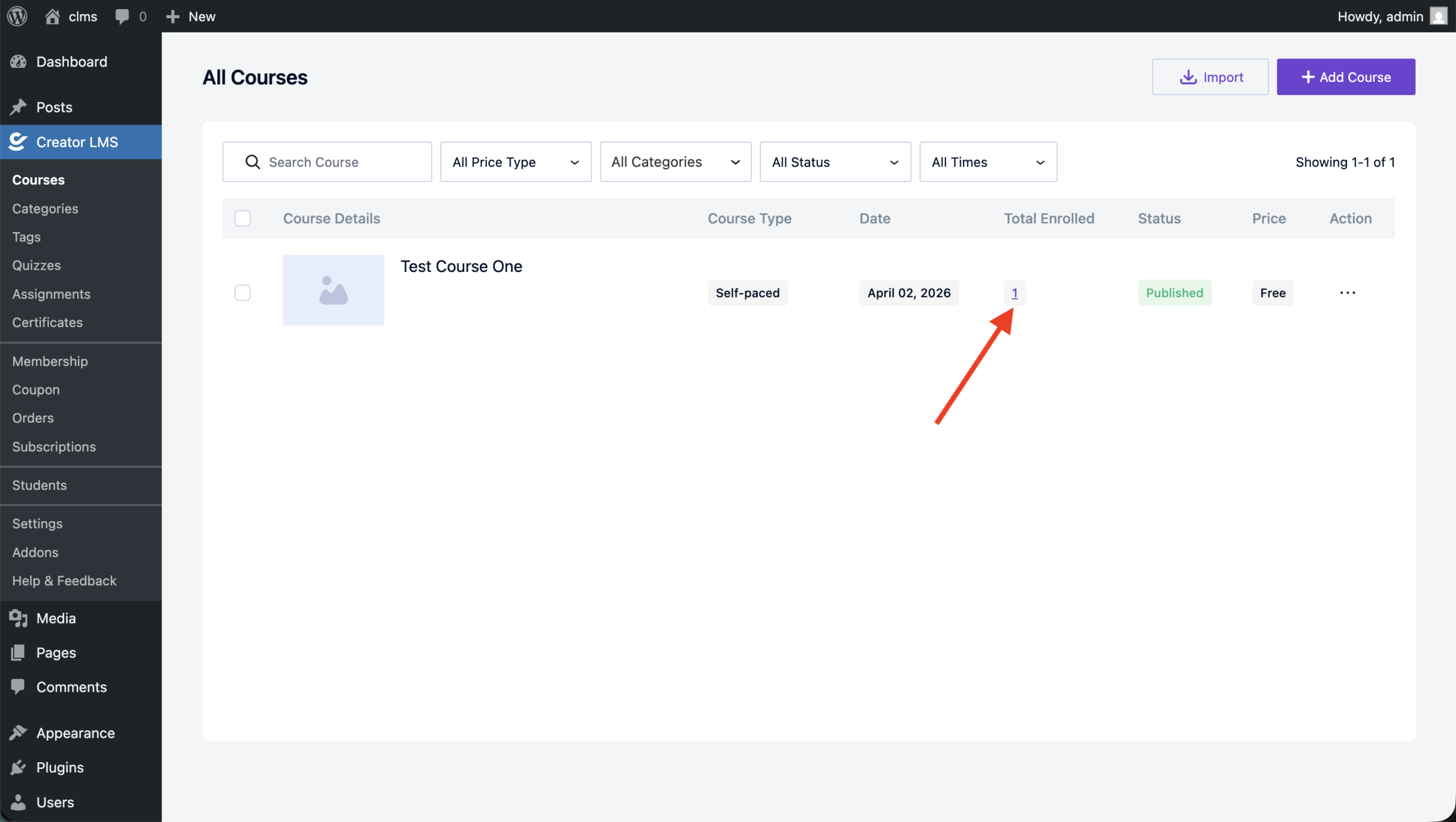
You can add a student manually from the course list on the admin dashboard. On the Total Enrolled column, you will see that the number is clickable. Click on the number.
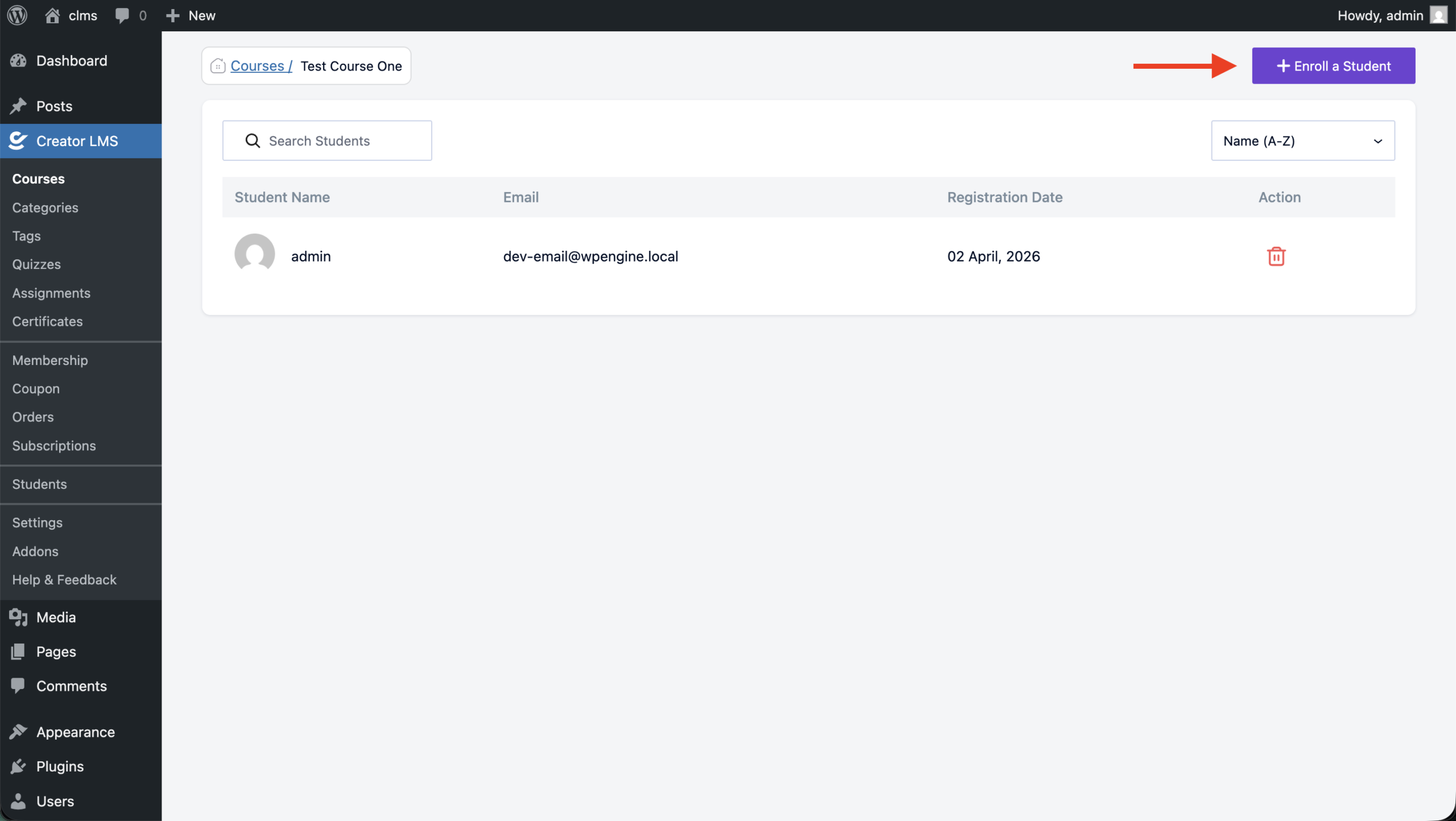
You will be taken to the list of the students and the Enroll a Student button will appear. Click on it.
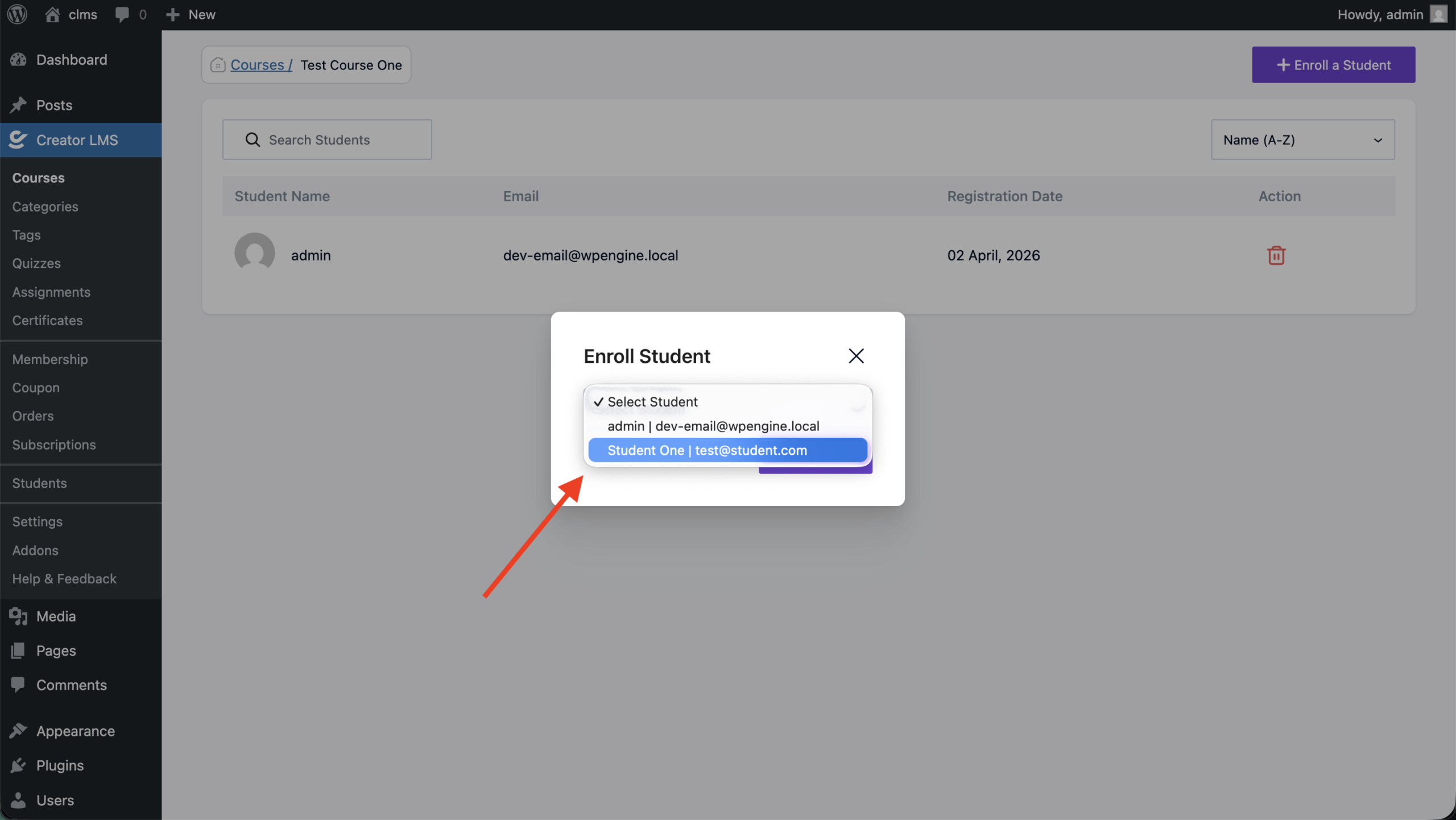
You will see all of the WordPress users on the Dropdown. Select the user you want to add as a student for the course and click on Enroll.
You will see a confirmation that the student is added. The student details would be visible on the list as well.
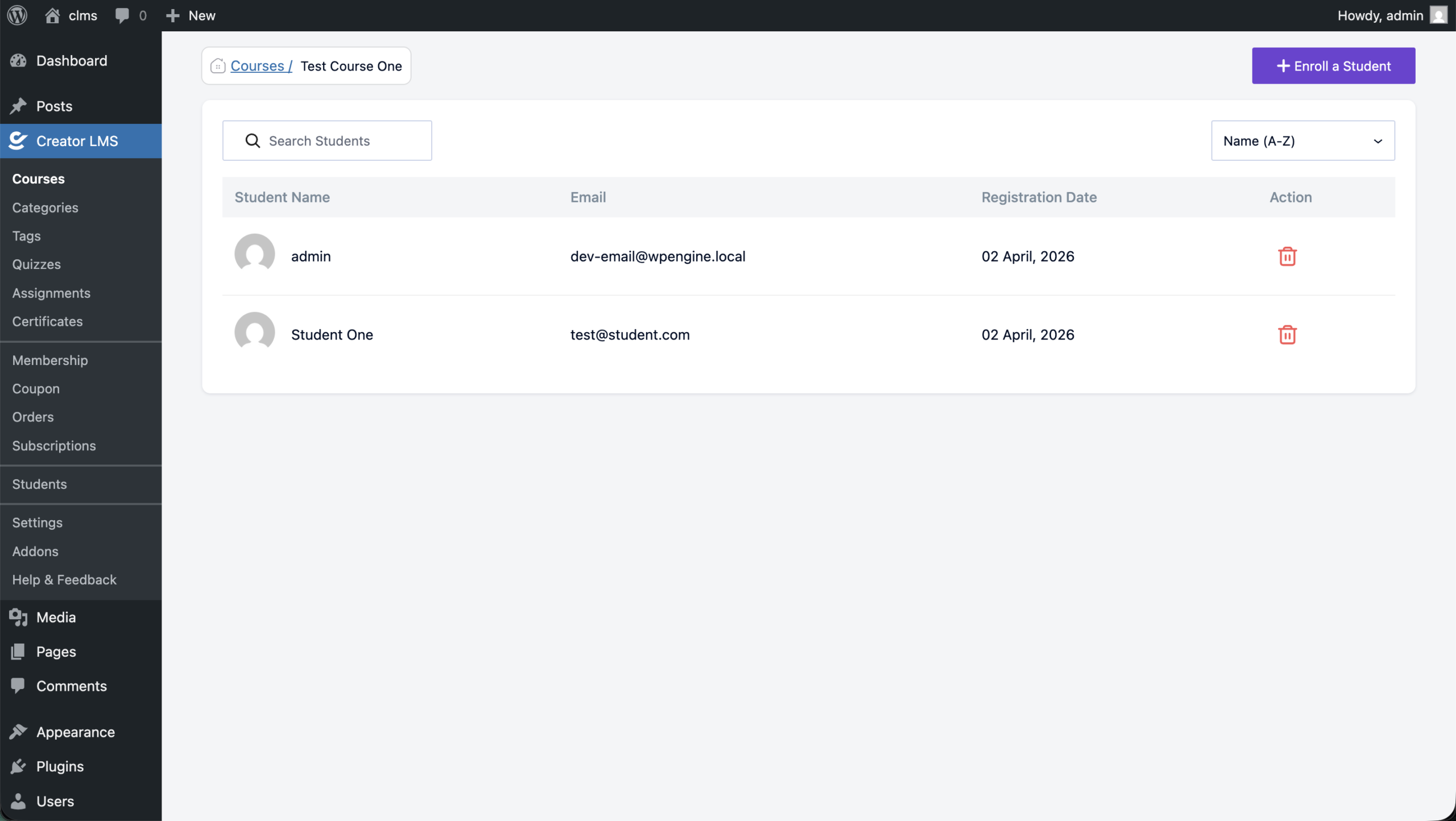
If you made a mistake, you can use the delete button on the right and the student would be removed from the course.
