

Once you have upgraded to Creator LMS Pro, the next step is to activate the Pro plugin on your website.
To use the Pro features, make sure the Creator LMS Free version is already installed and activated on your site.
Here’s how you can install and activate the Creator LMS Free version.
Next, follow the steps below to download the Pro plugin, get your license key, and install and activate it on your site.
Step 1 – Log in to Your Creator LMS Pro User Account
When upgrading to Creator LMS Pro, you created an account as a valued user. Use that email and password to log in.
- Go to the WPFunnels User login page, and it will take you to the following page:

- Here, log in with your Email and Password, and it will take you to the user dashboard.

Step 2 – Download the Latest Creator LMS Pro Plugin
- On your user dashboard, go to the Downloads tab.

- Click on the latest version of Creator LMS Pro to download the zip file.
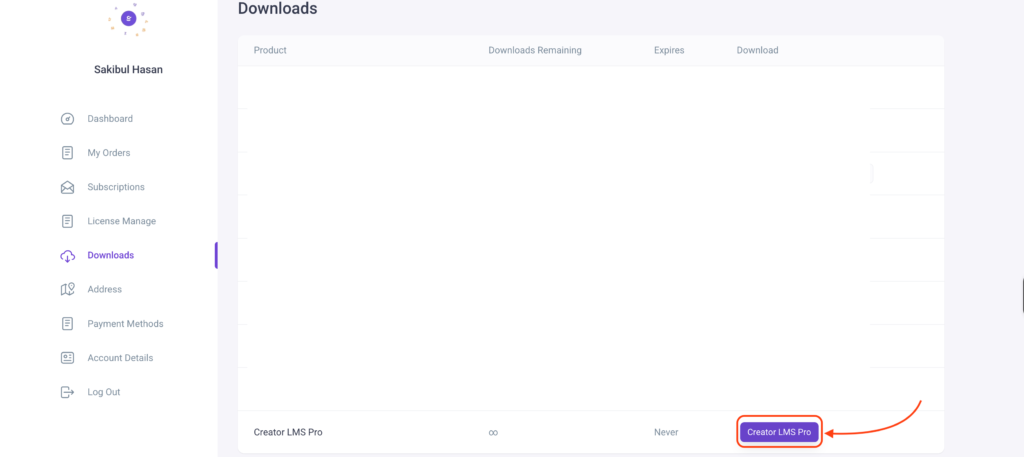
Step 3 – Copy Your Pro License Key
- On your user account page, you’ll find the License Manager option on the right-hand side.
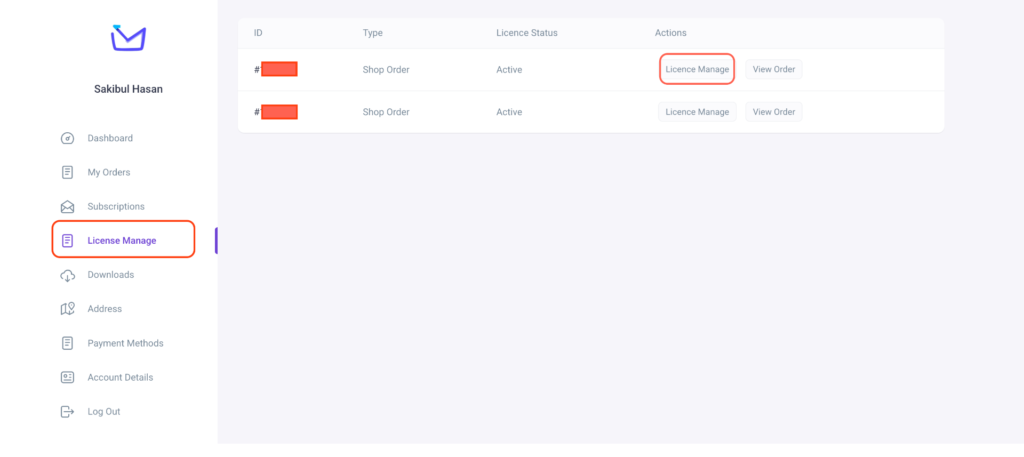
- Here, click on the License Manage button. It will take you to the following page:

Here, in the table, under the heading, License key, you will see your dedicated license key. Select and copy the license key.
Step 4 – Install & Activate Creator LMS Pro
- So you have the Pro plugin zip file and your license key copied.
- Now log in to your WordPress site, then on your dashboard go to Plugins > Add new.
- Upload the Creator LMS Pro zip file you downloaded earlier, then click Install and Activate.
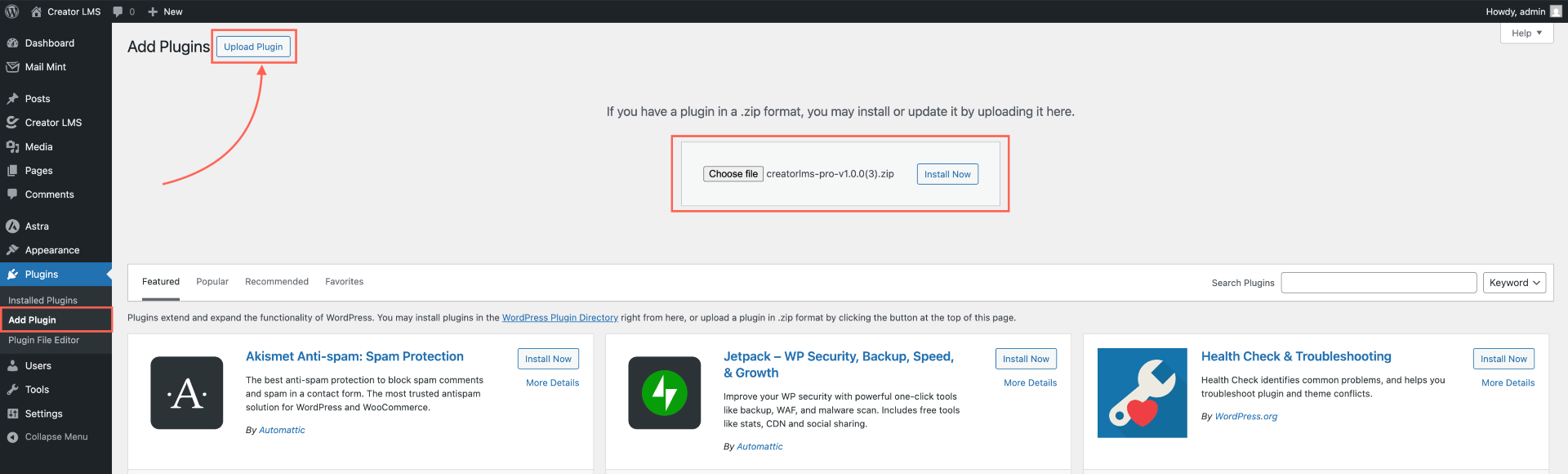
Then click on install, and then activate it.
Step 5 – Activate The License Key For WPFunnels
- Once the plugin is active, hover over Creator LMS on your dashboard and click Settings.
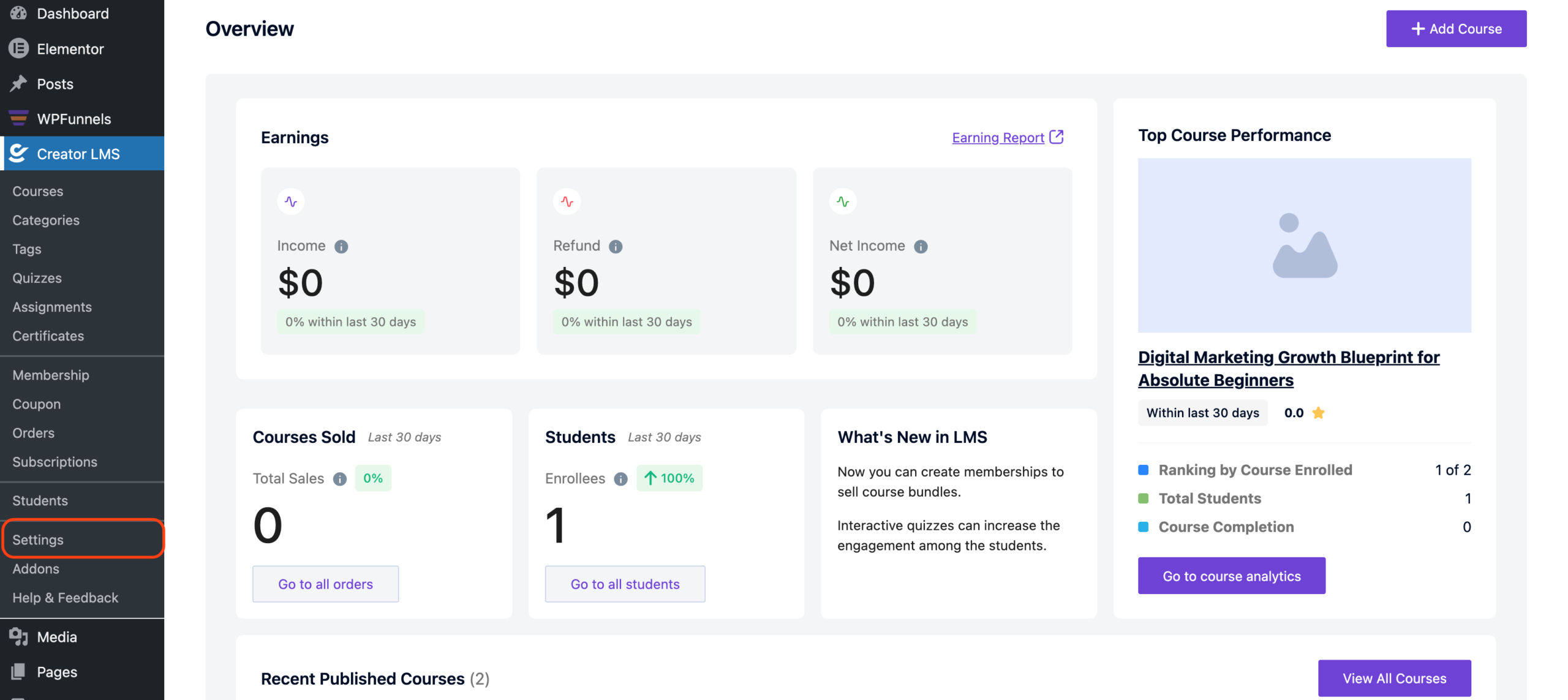
- Under the Settings menu, you’ll find the License option. Click on it to continue.
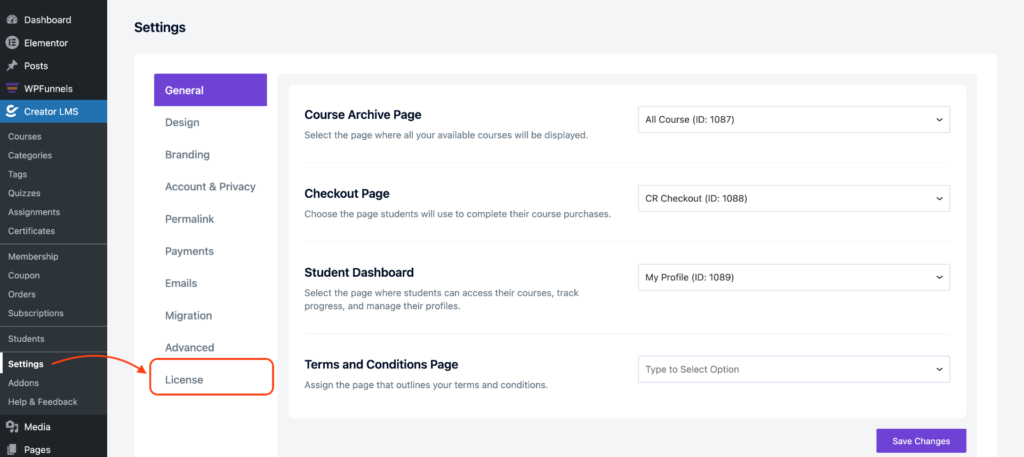
- Paste your license key in the field provided and click Activate License. You will see a confirmation once activation is successful. Once activated, you will get a confirmation.
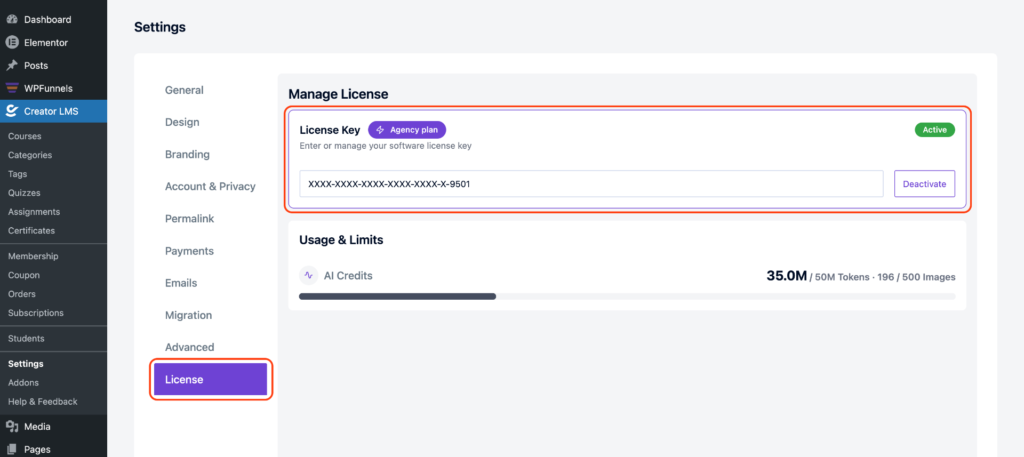
And that’s it! You’re now ready to use all the Pro features of Creator LMS to build powerful courses.
For further help, check out our Creator LMS resources.
