

Creator LMS allows you to design fully responsive and customizable course pages using your favorite page builder.
If you use WPBakery Page Builder, this guide will show you how to create and customize pages such as the Course Dashboard, Checkout, Sales Page, Cart, or Offer Details using Creator LMS elements inside WPBakery.
Before you begin, ensure both WPBakery Page Builder and Creator LMS are installed and activated.
With the free version of Creator LMS, you’ll find 2 elements available in WPBakery, while Creator LMS Pro unlocks 4 elements for more flexible and advanced page designs.
Step 1 – Go to the Page Section
- From your WordPress dashboard, go to Pages → All Pages.
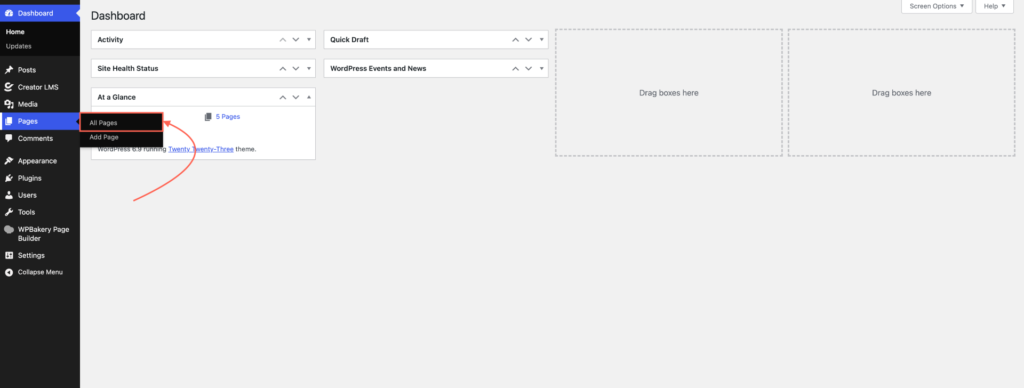
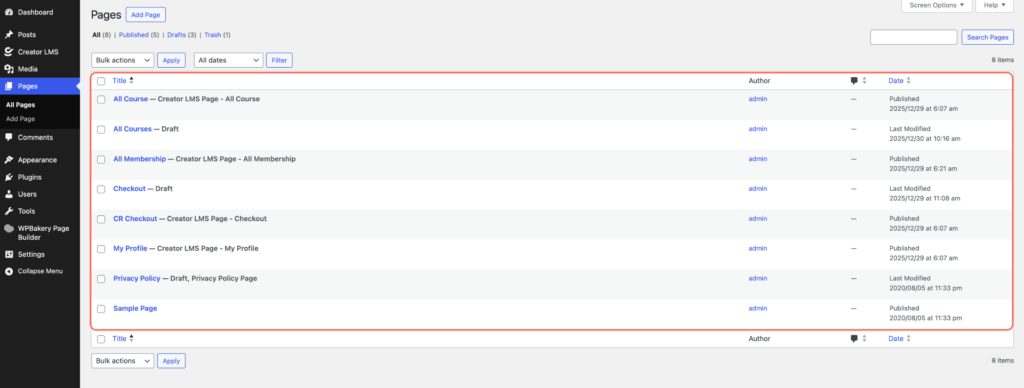
- When you install Creator LMS, some default pages—like Course Dashboard, Checkout, and Cart—are automatically created.
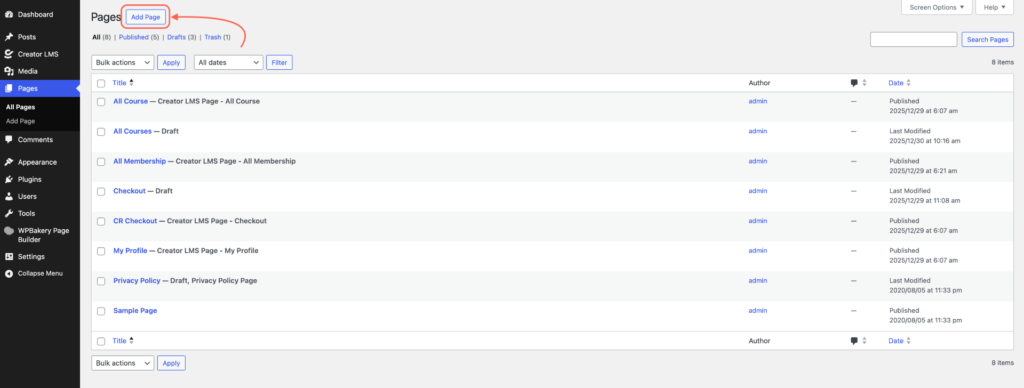
- To design a new page, click Add New Page.
Step 2 – Edit with WPBakery
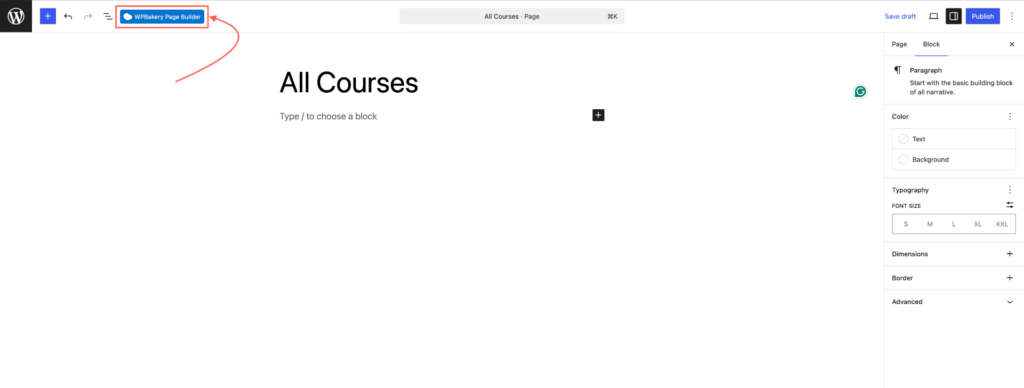
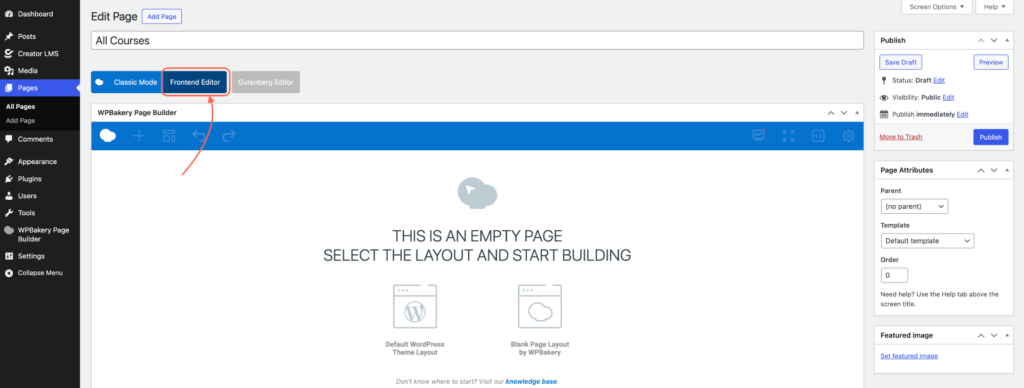
- Add a title to your page (e.g., “All Courses”). Click Edit with WPBakery to open the page in the WPBakery editor.
Step 3 – Access Creator LMS Elements
- Once you open WPBakery, you’ll see two editing options: Classic Editor and Frontend Editor. Click on Frontend Editor to design your page visually.
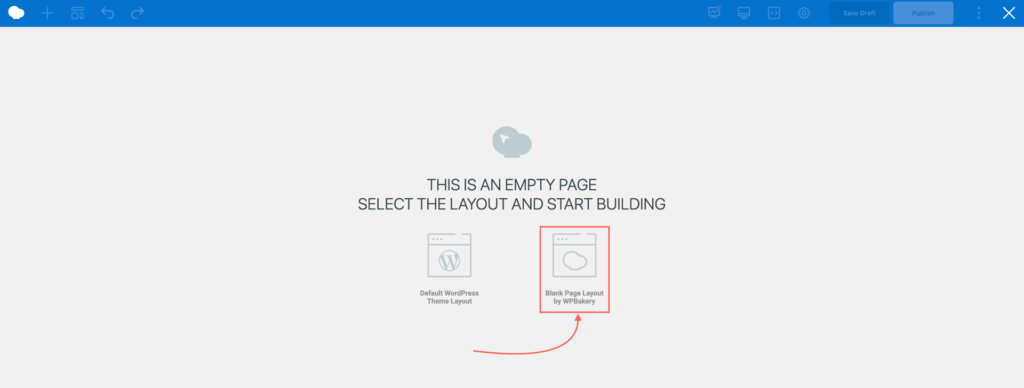
- Next, choose your page layout: either the Default WordPress Theme Layout or a Blank Page Layout provided by WPBakery.
- Click the plus (+) icon to add a new element, then scroll to the Creator LMS section where you’ll find all the available widgets.
- Free Creator LMS → 2 widgets available
- Creator LMS Pro → 4 widgets available
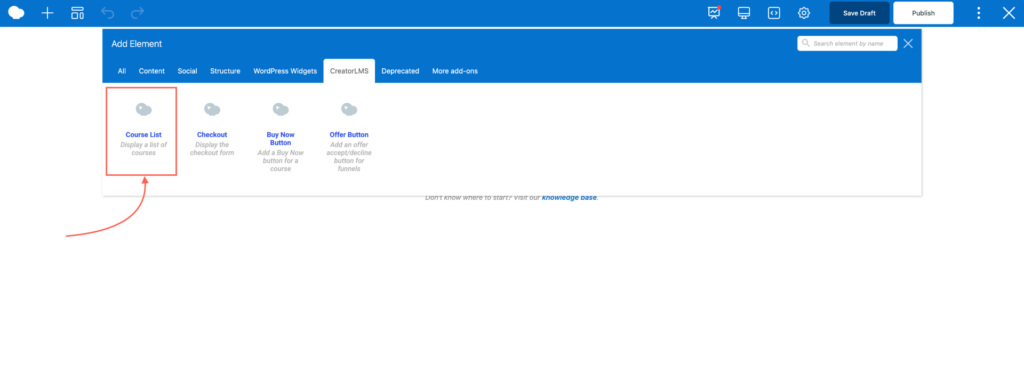
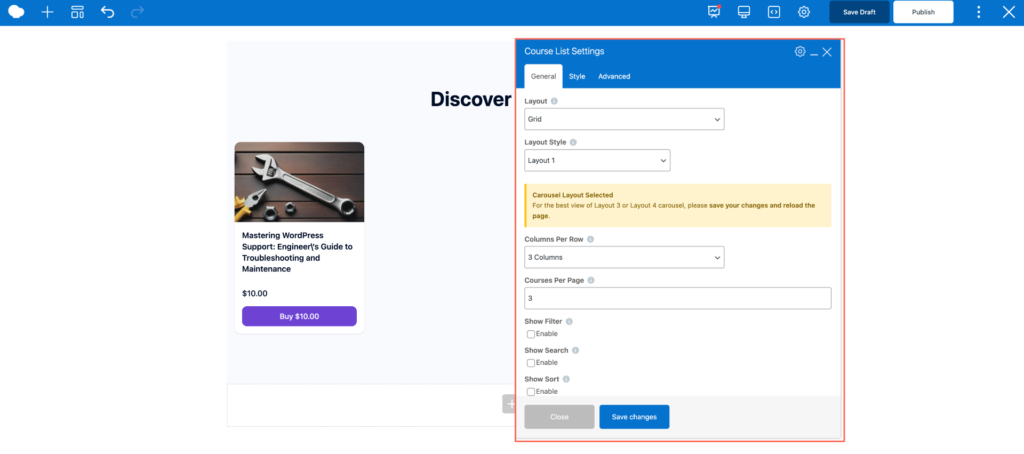
- For example, select the All Courses widget. After adding it to your page, you can configure additional settings, such as:
- Grid layout & Layout Style.
- Number of courses displayed per page.
- Other display options.
In the same way, you can use the other Creator LMS widgets to enhance your pages. For example, add Buy Now Buttons on your Sales Pages, Offer Buttons for upsells or downsells, etc.
