

Creator LMS allows you to run live sessions through Zoom for cohort-based courses. This requires both Creator LMS Basic and Pro installed on your site.
Step 1: Enable Zoom Integration
- Go to Creator LMS → Addons in the left sidebar.

- Enable Zoom and Cohort options. Note: Zoom functionality works only with cohort-based courses, not with self-paced courses.
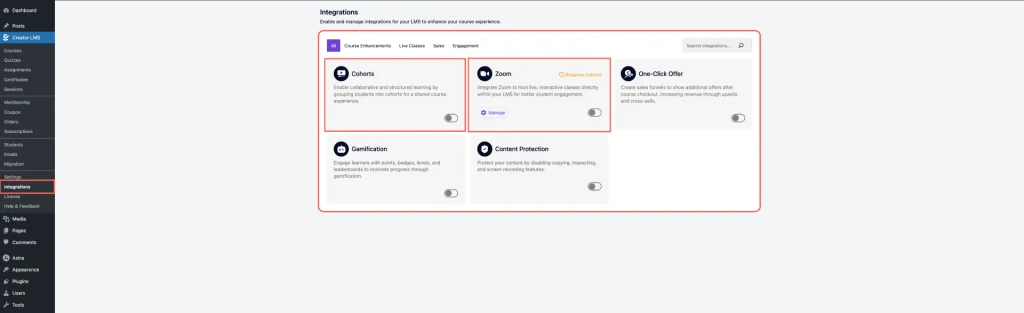
- Now, click Zoom → Manage and set up your credentials: Account ID, Client ID, Client Secret.

Once these configurations are complete, your LMS will be prepared to host cohort-based courses and enable Zoom integration.
Step 2: Create a Cohort Course
- Go to Course Sections from the left-hand menu.
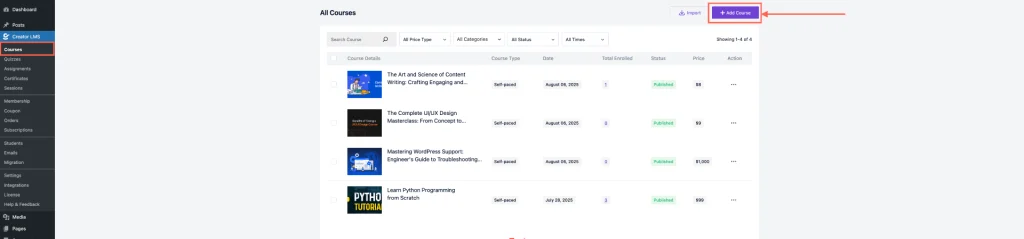
- Click Add Course, then a pop-up will appear asking you to choose the course type: Self-Paced and Cohort-Based → Choose Cohort-Based.

- You can choose to build the course with AI or from scratch. In this guide, we’ll create it from scratch.

Step 3: Configure Your Cohort Course
- After selecting a cohort-based course, set a clear title, informative description, and an appealing thumbnail to attract and guide students.

- Next, click on “Add Content,” and you’ll see the option to zoom.
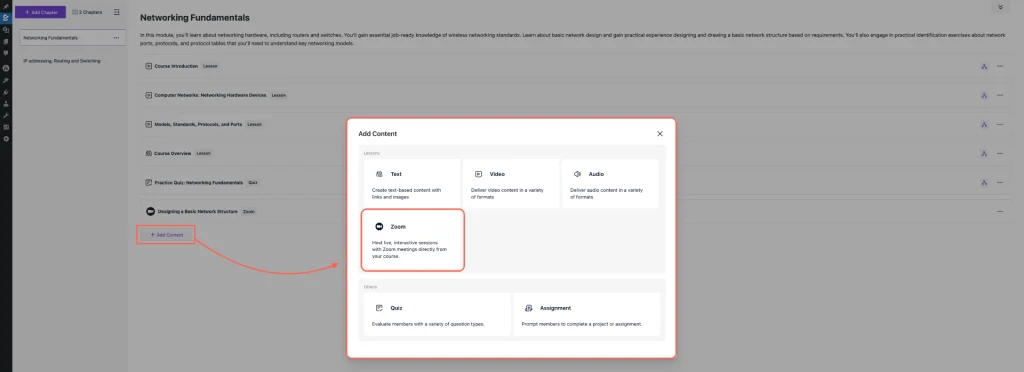
- Now, schedule Zoom meetings by adding content and configuring the meeting settings.

- From the left sidebar, go to Sessions. Here you’ll find a list of all live classes for your cohort-based courses, including scheduled Zoom meetings and links for students to join.
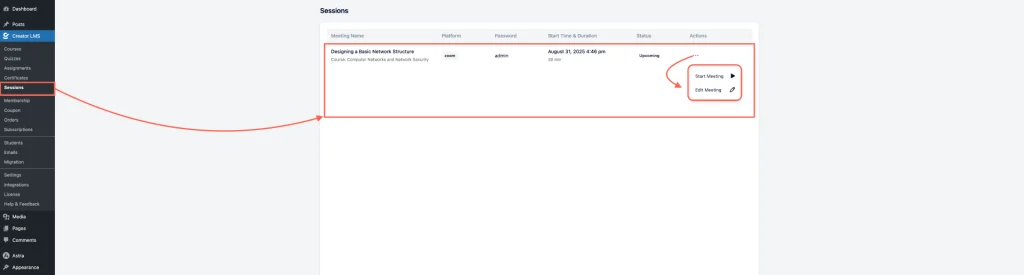
Once Zoom is integrated and a cohort-based course is configured, your students can attend live classes, and you can manage schedules and links directly from the course dashboard.
